
Text Message to Email: Automate Your Communications for Better Efficiency
Yes, you can absolutely get a text message to email using your phone’s built-in sharing features. It's a quick and easy way to save a single important message—think a client confirmation or a family address—right to your inbox for safekeeping.
Why Forwarding Text Messages to Email is a Game Changer
If your business phone is constantly buzzing with texts from potential customers, every single one of those messages is a potential sale. But what happens when that text comes in after hours? Or when the only person with the phone is tied up on another job?
Too often, that opportunity just slips away. That’s precisely why setting up a reliable system to convert a text message to email is so critical.
The Real Cost of a Missed Text
I see this happen all the time with service businesses. Imagine a busy plumbing company. An urgent text arrives at 7 PM: "Hi, my water heater just burst, and my basement is flooding. Can you help?"
That message lands on the on-call plumber's phone, but they're stuck on another emergency job and don't see it. An hour later, when they finally check, the desperate homeowner has already called and hired a competitor.
This isn't just a hypothetical; it's the daily reality for countless businesses. One missed text can easily mean hundreds or even thousands of dollars in lost revenue. Forwarding those texts to a central email inbox turns this weakness into a real strength.
By bridging the gap between an instant SMS and a structured email workflow, you create a documented, trackable system. This ensures every inquiry is seen, assigned, and followed up on, turning customer texts from a liability into a powerful asset.
Why Your Business Needs This Connection
Integrating texts into your email workflow is about more than just preventing lost leads. It’s about building a smarter, more responsive business.
When a text becomes an email, it can be:
- Logged and Tracked: It creates an official record of the customer interaction that you can easily search and reference later. For example, a roofer can search their inbox for a client's address from a text sent weeks ago.
- Integrated with Your CRM: You can automatically feed new leads and conversations directly into your customer relationship management software. A new text inquiry can create a new contact card in HubSpot instantly.
- Collaborated On by the Team: The email can be forwarded to the right person or department for immediate action. A text asking about pricing can be sent directly to the sales team's shared inbox.
- Archived for Compliance: It helps you maintain a clear communication trail for any legal, financial, or regulatory needs, which is crucial for law firms or financial advisors.
This kind of integration is a cornerstone of modern customer service. If you're looking to take your customer interactions to the next level, our guide on what is omnichannel customer service shows how this all fits into a bigger picture.
SMS vs. Email Engagement Head-to-Head
The data doesn't lie—the immediacy of SMS is in a league of its own. This quick comparison highlights the massive difference in performance between SMS and email, showing why capturing texts is essential for your business.
The numbers are staggering. With a 98-99% open rate and 97% of texts read within 15 minutes, SMS is a channel you can't afford to ignore. For businesses that depend on quick turnarounds, like dental clinics or law firms, a 'text to email' gateway captures opportunities that a standard email would miss entirely.
Manually Sending a Text to Your Email
Sometimes, you don't need a fancy, automated setup. You just have one important text message that needs to land in your email inbox right now. Maybe you need it for your records, or you have to share it with a colleague who isn't in the text thread. For these one-off situations, manually forwarding the text is the fastest way to go.
For example, you're a real estate agent at a house showing. The buyer texts you their official offer. You need to get that in writing to your transaction coordinator and the seller's agent immediately. Firing off that one text to their email is the most direct and efficient way to document it.
Forwarding a Text on an iPhone
On an iPhone, Apple bakes this function right into the Messages app, so there's no need for extra downloads. It’s surprisingly simple.
Let’s stick with that real estate scenario. You’ve got the offer text on your screen and need to email it.
- Open the Messages app and find the conversation.
- Press and hold the specific message bubble you want to send. A pop-up menu will appear.
- Tap "More..." from the menu. Checkboxes will appear next to each message.
- In the bottom right corner, tap the share icon (a square with an arrow pointing up).
- This opens a new message. In the "To:" field, type an email address instead of a phone number.
- Hit send. Your iPhone sends the text content as an email to that address.
This is a fantastic, built-in way to move any SMS content from your native messaging app straight to an email inbox.
How to Forward a Text to Email on an Android
The process on an Android phone is just as easy, though the exact labels or icons might look a bit different depending on who made your phone—like Samsung, Google, or another brand. The basic idea is always the same, though.
Let’s take another example. A plumber gets a text from a client detailing a nasty leak, complete with a few photos. To get this into the official job file, they need it in their email.
- Open your messaging app and navigate to the conversation.
- Long-press the message you want to forward until it's highlighted.
- Tap the menu icon (often three vertical dots) and select "Share" or "Forward."
- From the share menu that pops up, choose your email app (e.g., Gmail, Outlook).
- A new email draft will open with the text in the body. Add a recipient, a subject, and hit send.
A Quick Tip from Experience: When you forward a text this way, it often strips out the original timestamp and sender info. Before you hit send, I always recommend adding a quick note at the top of the email like, "Text from Jane Smith on 10/26 at 3:15 PM." It makes the archived message so much more useful when you look back at it later.
This same principle applies to more than just texts. If you need to keep audio messages for your records, you can also learn how to forward voicemail to email. These simple manual tricks are perfect for creating quick, reliable documentation whenever you need it.
Setting Up Automated SMS to Email Workflows
Sure, you can manually forward a text to your email in a pinch. We've all done it. But when you're running a business, that one-off trick just doesn't scale. Imagine your team trying to copy and paste dozens of client texts a day—it would become a huge bottleneck, and you’d inevitably start dropping the ball.
This is where automation completely changes the game. It turns a reactive, manual task into a proactive, hands-off system.
Platforms like Zapier and IFTTT (If This Then That) are brilliant for this. They act as connectors, letting your apps talk to each other without you needing to write a single line of code. Getting a handle on how they work is a great first step if you want to understand the fundamentals of business process automation and see just how much time you can get back.
The manual process is pretty simple, but it's all clicks and taps that add up.
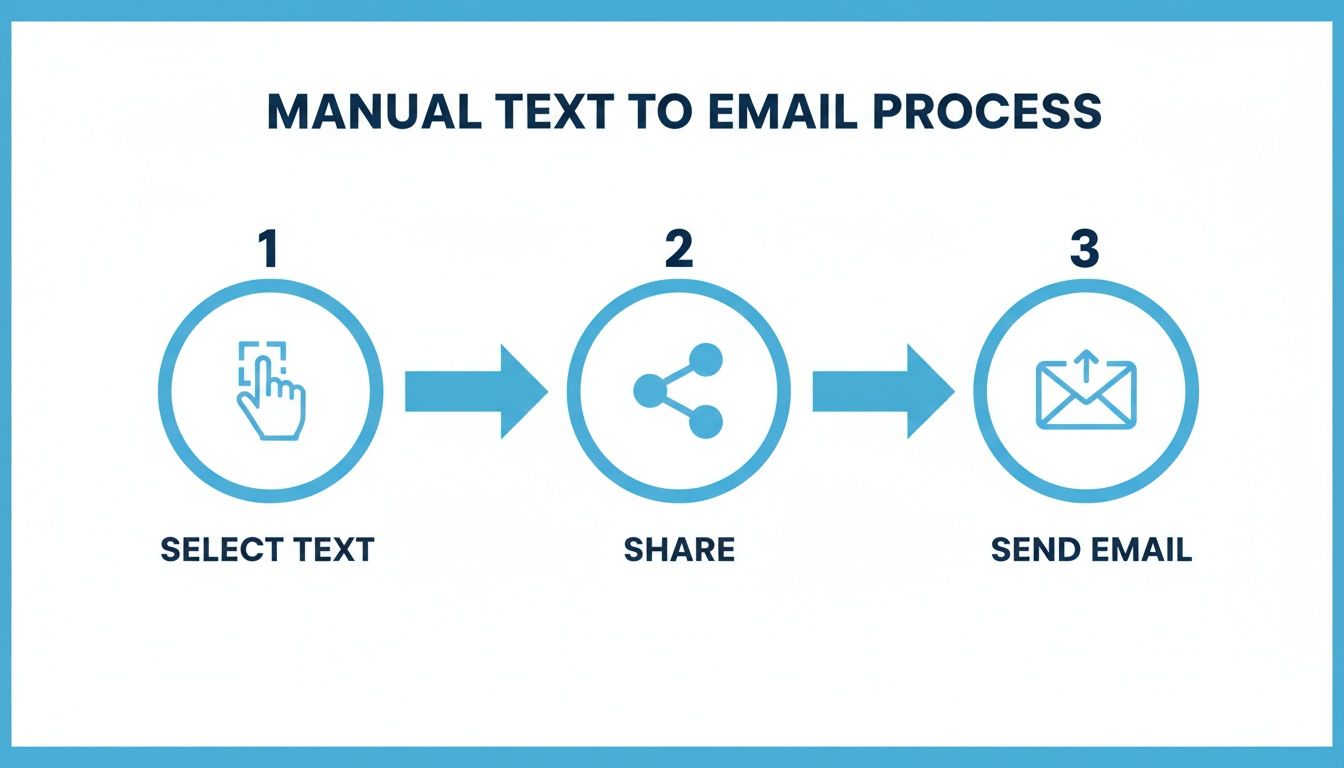
Automation gets rid of all that, freeing you and your team to focus on more important work.
Getting Started with Zapier for SMS Automation
Zapier is the powerhouse of the two, perfect for creating multi-step automations (which they call "Zaps"). If you need a text message to kick off several different actions, this is your tool.
Here's a practical example for a marketing agency using a virtual number from a service like Twilio to collect new leads.
- Trigger: A "New SMS" is received in Twilio.
- Action 1: Use the "Send Email" action in Gmail. Map the text's content to the email body and the sender's number to the subject line for easy tracking.
- Action 2: Add a "Create Task" action in Asana. The task title could be "Follow up with new lead: [Sender's Number]," assigned to the head of sales.
- Action 3: Finally, use the "Create/Update Contact" action in HubSpot to add the prospect's number to a "New Leads" list in your CRM.
This whole process is completely hands-off, ensuring no lead ever slips through the cracks. It also works beautifully alongside tools like an AI phone answering service that can handle the initial back-and-forth before the critical info gets forwarded.
By automating the path from text message to email, you’re not just saving time; you're building a reliable, error-proof system for lead management. Every inquiry is captured, logged, and actioned without any manual intervention.
Using IFTTT for Simpler Text to Email Workflows
IFTTT is all about simplicity. It uses "Applets" that work on a very direct "If This, Then That" logic, which makes it a fantastic choice for solo business owners or small teams who just need a quick and easy solution.
Here’s a real-world example: A freelance consultant gets important project updates from clients via text all day. Trying to log these manually is a recipe for disaster. With IFTTT, they can set up a simple Applet.
- If: New SMS is received on their Android phone (this is the trigger).
- Then: Use the "Add row to spreadsheet" action in Google Sheets. The Applet can automatically log the text's content, the sender's number, and a timestamp into a new row.
- Then: Use the "Send an email" action via the Gmail service. The email can be sent to their own business address, with the subject line "New Client Text Received," containing the same information.
This is so crucial because text messages get results. SMS campaigns can see a 45% response rate, which blows email's typical 6% out of the water. And with 82% of texts being read within 5 minutes, you can’t afford to let those valuable, high-intent conversations die on a locked phone screen. This simple automation creates a searchable log and makes sure every client communication is properly archived.
Choosing Your Automation Platform
Deciding between Zapier and IFTTT really comes down to your specific needs. Are you looking for something simple and direct, or do you need a more powerful, multi-layered workflow? This table breaks down the key differences to help you choose the right tool for the job.
Ultimately, both platforms are excellent at what they do. IFTTT is great for getting a simple, reliable bridge built fast. If your needs are more complex and involve several business tools, investing the time to learn Zapier will pay off significantly.
Tying SMS Capture Into Your Business Systems
Setting up a simple text message to email forward is a fantastic first step, but honestly, that's just scratching the surface. The real magic happens when you start piping SMS messages directly into the software that runs your business, like your Customer Relationship Management (CRM) platform. This is where you level up from simply saving messages to building a smart, automated engine for your entire operation.
When an SMS conversation flows right into your CRM, it's no longer just a string of text. It becomes actionable data. Every single interaction is logged against a customer's file, creating a perfect, time-stamped history that anyone on your team can pull up. It completely gets rid of the "wait, who talked to them last?" shuffle and gives everyone the full story.
Let’s Walk Through a Real-World Example: The Dental Practice
Picture a busy dental practice with a few locations. A potential new patient sees an ad and texts the main office number a pretty standard question: "Hi, do you accept Delta Dental, and are you taking new patients at your downtown location?"
Without an integrated system, that text message is probably sitting on a receptionist's phone, waiting for a free moment. But with a tool like Recepta.ai, a much smarter workflow kicks in instantly.
- Capture and Qualify: The system immediately receives the text. A conversational AI responds instantly, confirming their insurance details and appointment needs.
- Create Lead in CRM: It then automatically creates a new lead in the practice's management software (like Dentrix or Eaglesoft), populating it with the patient's name, number, and inquiry.
- Alert the Team: Simultaneously, it converts the full conversation into a formatted email for the office manager and creates a task in the system telling the front desk staff to call and schedule the appointment.
This all happens in a matter of seconds. The practice has captured a hot lead, created a patient record, and assigned a follow-up task before a single person had to lift a finger.
This kind of integration fundamentally changes how you handle new inquiries. You're eliminating the tedious, error-prone task of manual data entry while guaranteeing that every lead gets an immediate, consistent response. Plus, you’re building a rich, searchable history for every client.
The Payoff of Direct System Integration
Connecting your SMS channel directly to your business software offers some serious advantages that a basic forward just can't touch. You’re not just archiving a text message to email; you’re putting that message to work.
- No More Manual Errors: Automatic data entry means you can say goodbye to typos or missed details when adding new contacts.
- Better Team Collaboration: Everyone, from sales to support, sees the exact same customer interaction history. This keeps your whole team on the same page.
- A Smoother Customer Experience: Leads get an instant acknowledgment, and when your team follows up, all their info is right there. It’s a small touch that makes a huge professional impression.
- Actual Business Insights: When all your communication data lives in one place, you can finally start analyzing things like response times, common questions, and conversion rates to make your process even better.
This approach turns your business phone number into a truly intelligent front door. To see how this fits into the bigger picture, it's worth learning about choosing the right small business phone system that can handle these kinds of powerful integrations. The end goal is to build a system that's not just reliable, but that can actually scale with your business.
Best Practices for Managing Your New Workflow
Alright, so you’ve set up a system to get your text messages into your email inbox. That’s a fantastic first step. But the real win comes from what you do with those messages once they arrive. Without a solid plan, you can end up with just as much chaos as you had before, only now it’s cluttering up your email.
To turn this new setup into a powerhouse for your business, you need to lay down some ground rules, keep things secure, and know what to do when things inevitably go sideways.
This is more than just a tech trick; it's about building a communication process your team can rely on. For example, set up an automated reply that instantly texts a customer back: "Thanks for your message! Our team has received it and will be in touch shortly." This works wonders, giving the customer peace of mind that their message didn't disappear into a black hole and buying your team time to craft a proper response.
Standardize Your Response Process
So, a text lands in your inbox. Now what? If everyone on your team has a different way of handling it, you’re asking for trouble. This is where standardized email templates come in handy—they ensure every single lead or customer query gets the same professional treatment.
Your templates should instantly provide all the key details. For example, a landscaping company could use this template in their automation:
- Subject Line: New SMS Lead: [Sender's Number] - [First 10 Words of Text]
- From: [Sender's Number]
- Received: [Timestamp]
- Message: [Full Text Message Content]
- Action: Assigned to Sales. Please respond within 15 minutes.
This simple structure transforms a random text into a clear, actionable task. Anyone can look at that email and know exactly what’s going on and what they need to do next. No more guesswork, just faster, more consistent follow-up.
The whole point is to make the process predictable and repeatable. When every forwarded text looks the same, your team can move faster and with more confidence. That consistency is what builds a great customer experience from the very first hello.
Prioritize Security and Compliance
When you start forwarding communications, you're creating a new data trail, and you have to be smart about protecting it. This is especially true if you're in an industry that handles sensitive information. For a healthcare provider, for example, the entire workflow must be HIPAA compliant. You can’t just forward a text with patient details to a standard Gmail account—that's a recipe for a serious compliance violation.
Make sure you’re using secure, encrypted email services and platforms built with compliance in mind. It's also a good idea to periodically review who has access to the inbox where these texts are being collected. Treat this digital information with the same care you'd use for physical files.
Troubleshooting Common Hiccups
No system is perfect, and you'll likely run into a few bumps. Here are some common issues I’ve seen and how to fix them:
- Formatting Glitches: Emojis or special characters in a text can sometimes look like gibberish in an email. Action: Send a few test messages with emojis (👍), symbols (@#$), and line breaks to see how your system translates them. Adjust your automation formatting if needed.
- Forwarding Delays: If there's a noticeable lag between when the text is sent and when the email arrives, check the status page for your automation tool like Zapier or IFTTT. They occasionally have short delays, but if the problem persists, you might need to try reconnecting your accounts.
- Incomplete Information: Is the sender's number or part of the message missing? Action: Dive back into your automation recipe (your Zap or Applet). Check that you've correctly mapped all the data fields from the trigger step (the text message) to the action step (the email).
By staying on top of these little details, you’ll keep your text message to email pipeline running smoothly and reliably.
Answering Your Questions About Sending Texts to Email
When you start digging into the process of sending a text message to email, a few common questions always seem to pop up. Whether you're just manually forwarding a one-off message or building a full-blown automation, getting a handle on these details will save you a lot of headaches down the road.
One of the first things people ask is about multimedia messages (MMS). Can you actually forward photos and videos? The short answer is yes, but it depends on your method.
If you're manually sharing a message with a picture from your phone, your email app will usually just grab the photo and attach it to the draft. It’s pretty seamless. Automation tools, on the other hand, can be a bit trickier. Some might need a specific setup to process files, and they often convert them into a downloadable link instead of a direct attachment.
For example, a plumbing contractor gets a photo of a burst pipe. Manually forwarding it ensures the photo is attached directly to the email for the job file. An automated workflow might require an extra step, like telling Zapier to "upload the file from the MMS to Google Drive and include the shareable link in the email."
Do International Texts Work the Same Way?
This is another big one. The good news is that the process for converting a text message to email is usually the same no matter where the text came from. Your phone’s built-in sharing feature or an automation service like Zapier doesn't really care if the number is from down the street or across the globe.
The real thing to watch out for here is cost. Your mobile carrier might hit you with extra charges for receiving international texts. If you work with clients overseas, it’s a smart move to double-check your mobile plan to avoid any nasty surprises on your bill.
The forwarding process itself doesn't change with geography. The main thing is making sure your phone plan can actually receive those messages without costing you a fortune.
Finally, a really common question is whether you can automatically reply to a text once it's been forwarded to your email. This is where you see the difference between basic and more advanced systems.
- Simple tools: An applet from IFTTT is great for the one-way street of just getting the text into your inbox.
- Advanced platforms: This is where a service like Recepta.ai really shines. It doesn't just forward the message; it can also fire off an instant, automated SMS confirmation back to the sender. This tells them you got their message and you're on it.
Stop letting text messages slip through the cracks and cost you business. Recepta.ai not only captures every SMS but uses AI to qualify the lead and push it straight into your CRM. Best of all, it provides a professional, 24/7 response so you never miss a beat. See how it works and grab a 30-day risk-free trial.