
How to Transfer Calls Flawlessly: A Complete Guide for 2026

Transferring a call seems simple enough on the surface. You hit the "Transfer" button, punch in an extension, and either send the call on its way or announce it first. But this small action has a huge impact. It's often the first real test of your company's efficiency, and getting it right is fundamental to great communication and a professional image.
The Three Essential Types of Call Transfers
Knowing how to transfer a call is one thing; knowing which type of transfer to use is what separates the pros from the amateurs. A slick, seamless handoff makes a caller feel heard and taken care of. A clumsy one, on the other hand, is a fast track to frustration. It's no wonder that studies show as many as 67% of callers will just hang up if they can't get to the right person quickly.
The trick is to match your transfer method to the situation. A quick internal question doesn't need the same white-glove treatment as a high-value sales lead or a customer with a complicated support issue. By understanding the three main ways to transfer a call—blind, attended, and consultative—you'll have the right tool for any job.
Blind or Cold Transfers
Think of a blind transfer (or cold transfer) as the "point-and-shoot" of call handling. You redirect the call to another person or department without speaking to them first. The recipient’s phone rings, they pick it up, and they're immediately talking to the caller. No intro, no warning.
This method is all about speed and efficiency, making it perfect for simple, low-stakes situations where no context is needed.
- Practical Example: A caller just wants your business hours. Instead of reading them off, you can do a blind transfer to an automated info line that handles these common queries. The caller gets their answer, and your line is freed up instantly.
- Another Scenario: A customer has a basic question about an invoice. A blind transfer sends them right into the accounting department's general queue, where the next available agent can pull up their details and help.
Attended or Warm Transfers
An attended transfer, often called a warm transfer, is where your customer service skills really shine. It’s a much more personal approach. You place the caller on a brief hold, dial your colleague, and give them a heads-up before connecting the two. You’re confirming your teammate is available and giving them the context they need.
This creates a far better experience, especially for complex or important calls. The caller doesn't have to repeat their entire story, which they will definitely appreciate. The mechanics are similar to making a three-way call, a core skill that’s the foundation for this kind of professional handoff.
Pro Tip: Always give your colleague a quick, one-sentence summary. Something like, "Hey, I've got Mark on the line—he's a new sales lead interested in the enterprise plan and has a few questions about integration." That small step makes a world of difference to the customer.
Before we move on, it's helpful to see these two common transfer types side-by-side. Each has its place, and knowing when to use which is key.
Blind vs Attended Transfers At a Glance
| Feature | Blind (Cold) Transfer | Attended (Warm) Transfer |
|---|---|---|
| Process | Redirect call immediately without speaking to the recipient first. | Speak to the recipient to provide context before connecting the caller. |
| Speed | Fastest method. | Slower, involves an extra step. |
| Customer Experience | Can feel abrupt; caller may have to repeat themselves. | Professional and seamless; ensures the caller feels valued. |
| Best For | Simple, internal queries; automated lines; general department queues. | Sales leads; complex support issues; VIP clients; first-time callers. |
| Potential Pitfall | Transferring to an unavailable person or the wrong department. | Can take longer if the recipient is busy or needs a detailed briefing. |
Ultimately, choosing the right one comes down to prioritizing either raw speed or a quality customer experience.
Consultative Transfers
The consultative transfer is the most strategic of the three. It’s what you use when you're not just passing a call along, but actively solving a problem. You put the caller on hold, dial your colleague, and have a full discussion about the issue.
- You tell the client, "Let me quickly check with our data analyst, Jen, to get the exact numbers for you. One moment."
- You put the client on hold and call Jen. You explain the client's question.
- Jen gives you the answer. You can now either transfer the call to her for a deeper dive or simply relay the information back to the client yourself.
- Start the transfer: While talking to the patient, press the "Transfer" button. This automatically puts the caller on hold.
- Dial the extension: Punch in the nurse's extension (e.g., 104).
- Announce the call: When the nurse picks up, give a quick heads-up: "Hi Sarah, I have Mrs. Davis on the line about her prescription refill."
- Complete the handoff: Simply press the "Transfer" button one more time. This connects the patient and nurse, and your line is now free.
- Find the Transfer Button: During the live call, your first step is to locate the “Transfer” button. It’s almost always marked with an icon of a phone and a right-pointing arrow.
- Pick Your Colleague: Once you click it, a new window or menu will pop up. This is where you can type your colleague's name or extension. The built-in company directory makes finding the right person a breeze.
- Choose Your Handoff Style: This is where softphones really show their value. You’ll see clear options for a Warm Transfer (sometimes called "Ask First" or "Speak to...") or a Blind Transfer ("Transfer Now").
- Make the Connection: If you’re doing a warm transfer, you'll be connected to your colleague first to give them a quick heads-up. After you've briefed them, you'll click a final button—often labeled “Complete Transfer”—to connect the original caller.
- Click the "Transfer" icon (phone with an arrow).
- Use the search bar to find the person or extension in your company directory.
- You'll then get a clear choice: "Ask First" for a warm transfer, "Transfer Now" for a blind one, or "To Voicemail" to send the caller right to their mailbox.
- In your active call controls, find and select the “Transfer” option.
- Type in the name or number you're sending the call to.
- A simple dropdown menu will appear, letting you select "Warm Transfer," "Blind Transfer," or "Transfer to Voicemail."
- During any active call, just click the "Transfer" button.
- Start typing the name or extension of the person you need.
- Before completing the action, you'll be prompted to choose between a blind transfer or an attended (warm) transfer.
- "It sounds like Mark in our technical department is the best person to sort this out. Would it be okay if I connect you with him?"
- "To get this resolved for you quickly, I need to bring in our billing team. Is that alright?"
The Wrong Way (Cold Transfer): The receptionist just forwards the call. The lawyer answers, "Hello, this is David," and the client has to re-explain their urgent, stressful situation from the very beginning. They immediately feel like they're not a priority.
The Right Way (Warm Transfer): The receptionist puts the client on a brief hold and tells the lawyer, "Hi David, I have Mrs. Chen on the line about an urgent question on the Miller contract. I'm transferring her now." David can now answer with, "Hello, Mrs. Chen. I understand you have a question about the Miller contract. How can I help?"
- The Scenario: An AI receptionist at an HVAC company gets a call at 2 a.m. The caller is frantic: "My heat is out and it's freezing in here."
- AI Action: The system immediately recognizes keywords like "no heat" and "freezing" as an emergency, skipping the standard appointment script.
- The Escalation: The AI performs an automated attended transfer directly to the on-call technician’s cell. At the same time, it fires off a text with a summary: "EMERGENCY: New call from Jane Doe. Address: 123 Maple St. Issue: No heat."
Practical Example: You try to warm transfer a customer to the tech support department (extension 201), but it goes to voicemail. The call bounces back to you.
- Apologize & Reassure: "My apologies, it seems the tech support team is currently assisting other customers. I can either take a message for you or transfer you to their general voicemail."
- Verify the Details: You quickly realize you dialed 210 instead of 201.
- Correct & Re-engage: "Actually, my mistake! Let me try that again for you. One moment please."
Did I dial the right extension? It's so easy to fat-finger a digit. Always double-check the number before you try again.
Is the recipient even available? Their status might be set to "Do Not Disturb," or they could be on another call. A quick glance at your team's presence indicators can save you a second failed attempt.
Am I using the right transfer type for my system? Trying a consultative transfer on a basic phone line that only supports blind transfers will obviously fail. Make sure you know your equipment's capabilities.
- Open your softphone app on your desktop.
- You’ll see an indicator for your active call.
- Just click the button that says something like "Switch to this device" or "Flip Call."
Based on that conversation, you can then decide the best path forward. You might transfer the call, bring your colleague into a conference with the caller, or simply go back to the caller with the answer you needed. It’s a flexible, problem-solving approach.
This decision-making process is crucial for handling calls effectively. This flowchart breaks down how to choose the right transfer type based on the caller's specific needs.
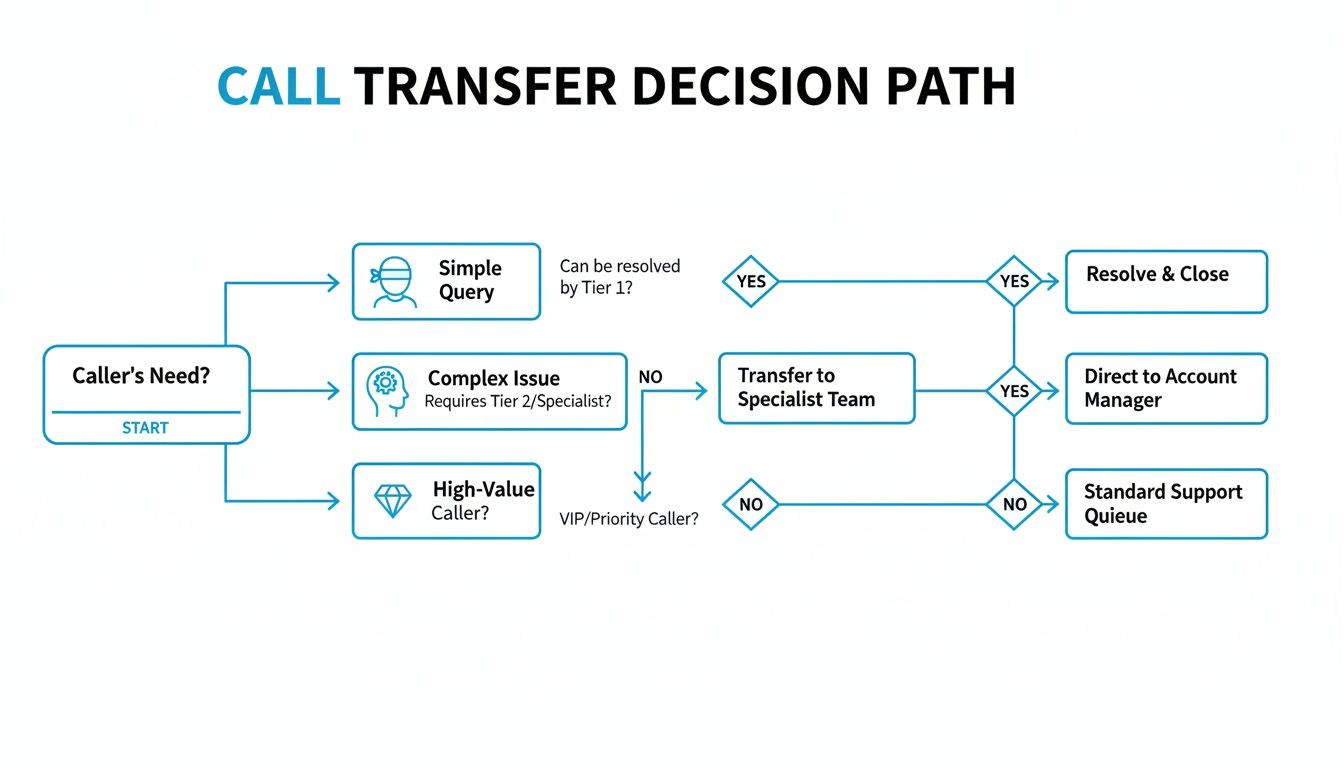
As you can see, the complexity and importance of the call guide your choice. Getting a handle on these different transfer methods is a lot like understanding other call routing strategies. If you want to dig deeper, exploring different call forwarding options can give you even more control over your business communications.
Mastering Call Transfers on Any Device

Knowing the theory behind call transfers is one thing, but fumbling for the right button with a customer on the line is another. How you transfer a call really depends on the hardware in front of you, whether it's a classic desk phone or the smartphone in your pocket.
Let's walk through the exact steps for the devices you use every day.
It's easy to forget that today's one-touch transfers are a luxury. This all started with manual switchboard operators physically patching lines together. The game changed when systems like AT&T's Merlin PBX arrived around 1980, which allowed office workers to transfer calls with a simple flash-hook and dial. Telecom reports from that time showed this simple feature boosted office efficiency by a staggering 40%.
Transferring Calls on a Desk Phone
The trusty desk phone is still a fixture in many offices for a reason: it’s built for handling calls efficiently. While the button labels might differ slightly across brands like Poly, Cisco, or Yealink, the fundamental process is nearly identical. You’re almost always looking for a dedicated "Transfer" button or sometimes a "Flash" key.
Picture this: you're a receptionist at a busy medical clinic. A patient is on the line asking about a prescription refill. You need to get them to the right nurse, and a warm transfer is the best way to do it.
Of course, for a blind transfer, you’d just press "Transfer," dial the extension, and hang up right away. It's faster, but it doesn't provide that professional, personal touch that's so important in a healthcare setting.
How to Transfer Calls on a Mobile Phone
On a smartphone, you won't find a dedicated "Transfer" button. Instead, it's all about managing multiple calls at once. Both iOS and Android bake this functionality right into the native phone app, using features typically labeled "Add Call" and "Merge Calls".
Let's say you're a contractor out on a job site. A supplier calls with a question about an invoice, but your office manager is the one who handles payments. Here’s how you’d connect them.
On an iPhone
First, while you're on the call with the supplier, tap the "Add Call" icon. This puts your supplier on hold.
Next, dial your office manager. Once they answer, you can quickly brief them: "Hey Alex, I've got the lumber supplier on the other line about invoice #1234."
Now, tap "Merge Calls" to bring everyone into a three-way conference. To complete the transfer, tap the little "i" (info) icon for the conference, find your own number in the list, and tap "Drop" to exit the call. The supplier and office manager will remain connected.
On an Android Device
The process on Android is quite similar, though the exact labels can change depending on who made your phone (like Samsung or Google).
You'll start by tapping "Add Call" during your active conversation. Call your office manager, and once they pick up, look for a "Merge" or "Conference" button to join the lines. From there, you can usually just hang up, which will leave the other two parties connected to each other.
Key Takeaway: For mobile transfers, "Add Call" and "Merge" are the tools for the job. It's more of a manual conference-and-drop than a direct transfer, but it gets the same result. It's a lifesaver for anyone working remotely or out in the field.
It's important to know that these steps for actively transferring a call are different from call forwarding. If you want to learn how to automatically send calls to another number when you can't answer, check out our guide on how to forward calls on a cell phone.
Transferring Calls on Modern VoIP and Softphone Platforms
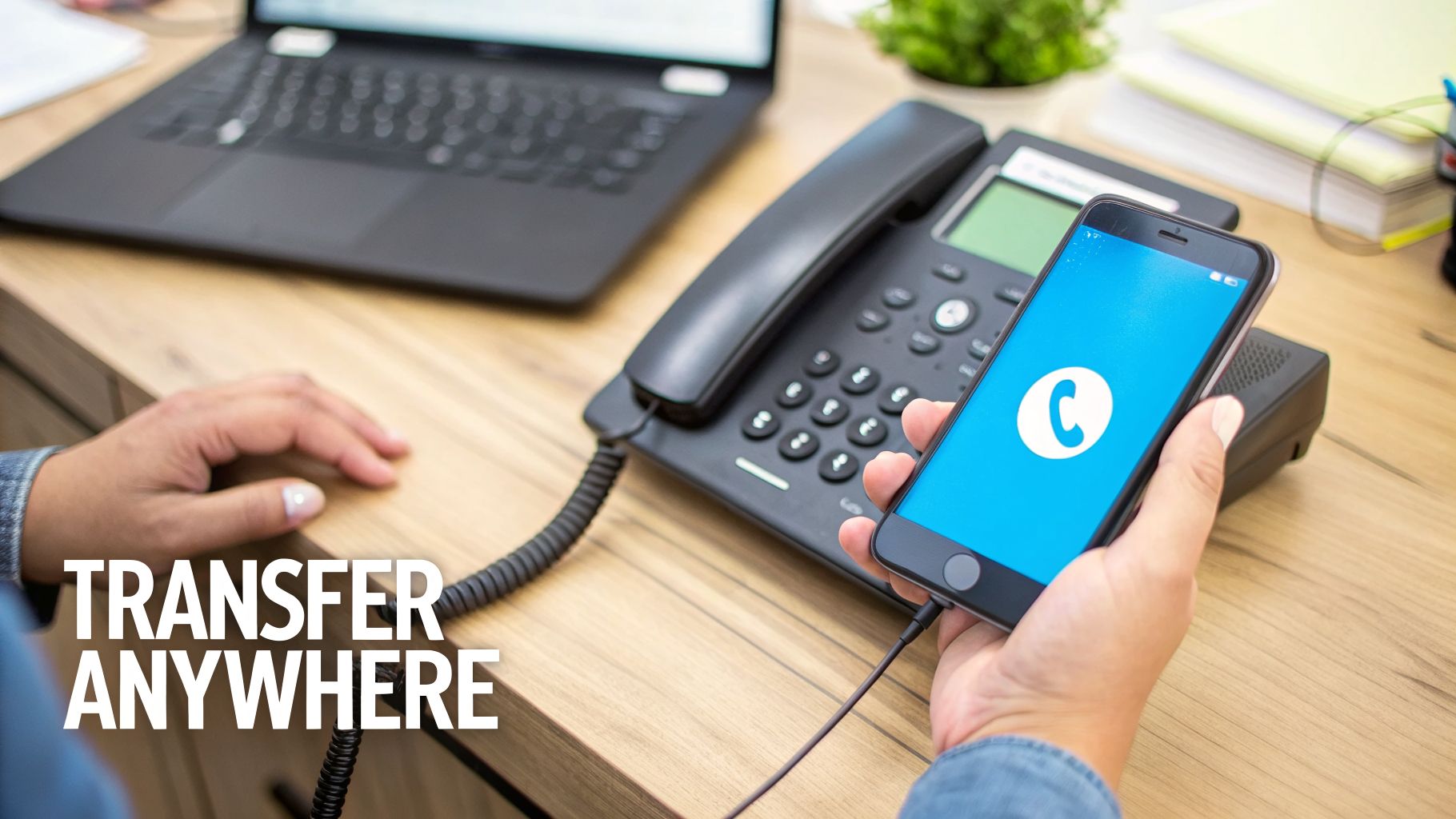
While that trusty desk phone still has its place, let's be real—most business communication today happens through software. Voice over IP (VoIP) systems and softphone apps have completely untethered call management from a physical desk, moving it to any device with an internet connection. This has opened up a world of flexibility and features that old-school hardware just can't match.
Platforms like RingCentral, Nextiva, and Zoom Phone effectively turn your laptop or smartphone into a command center for your calls. Suddenly, you have the power to route calls with the precision of a corporate call center, whether you're working from home, a coffee shop, or the office. Gone are the days of being physically stuck at your desk just to handle a call properly.
Transferring Calls in Your Softphone App
So, how does it actually work in practice? Softphone apps are designed to be pretty intuitive. The icons and menus often mimic what you'd find on a physical phone, just with a lot more power under the hood. The key is knowing what to look for, and it all starts in your active call window.
Let's say a remote healthcare consultant is on a call with a patient using their laptop. The patient has a question that only a specialist can answer. This is a perfect moment for a warm transfer—it’s professional and ensures the patient gets to the right person without getting lost in the shuffle.
While the exact layout varies, the core process is remarkably consistent across most platforms:
The whole process is guided, which dramatically cuts down on the chances of accidentally dropping a call or sending someone to the wrong department.
Pro Tip: Transfer Directly to Voicemail
One of the best features of modern VoIP is the ability to send a caller directly to a colleague's voicemail. This is a lifesaver when you know the person is in a meeting but you need to get a non-urgent message to them. Just look for a "Transfer to Voicemail" option after you select their name.
Platform-Specific Walkthroughs
Although the general idea is the same, every platform has its own unique look and feel. Let's break down how to handle transfers on a few of the most popular services out there.
RingCentral Walkthrough
RingCentral is known for its clean, straightforward interface. When you're on a call, you’ll see a row of icons at the bottom of the call screen.
Zoom Phone Walkthrough
Since so many of us already live in Zoom, its phone system feels incredibly familiar. The controls are right where you'd expect them to be.
Nextiva Walkthrough
Nextiva keeps things simple and direct within its softphone application.
These software-based systems do more than just make transfers easier. They provide a powerful toolkit for managing your entire communication flow, from routing a call to an entire sales team to making sure every single caller ends up exactly where they need to be.
Best Practices for Professional Call Transfer Etiquette
Knowing which buttons to press to transfer a call is the easy part. Doing it with a level of professionalism that makes a customer feel valued, not like a hot potato being passed around? That’s an art. A clunky transfer can sour an entire customer experience, while a smooth one shows you’re on top of your game.
The golden rule of call transfers is simple: never make someone repeat their problem. Everything else flows from that one principle. It’s all about showing respect for the caller's time through clear communication and a bit of empathy.
First, Always Ask for Permission
Before you even think about hitting that transfer button, just ask. It's a simple courtesy that gives the caller a sense of control. Abruptly redirecting someone can feel jarring and dismissive, instantly putting them on the defensive.
Instead of a blunt "I'll transfer you," try framing it as the solution they need:
This small step reassures the caller that you're actively finding the right help for them, not just passing them off.
Give the Caller a Name and a Destination
A blind transfer into the unknown is a recipe for frustration. No one likes being sent into the void.
Always tell the caller exactly who they’ll be speaking with and, if you can, why that person is the right contact. Giving a name and a title makes the handoff feel personal and organized. For example: "I'm connecting you with Sarah Johnson, one of our senior support specialists. I'll brief her on the situation so you won't have to start over."
That one sentence accomplishes two things: it sets clear expectations and shows the caller you’re handling their issue with care.
A warm transfer isn't just a feature; it's a statement about your company's commitment to customer service. The few extra seconds it takes to provide context to your colleague can be the difference between a confused caller and a confident client.
Deliver Context During the Warm Handoff
Here’s where the magic really happens. When you speak to your colleague before completing the transfer, you’re not just checking if they're free—you’re arming them with the intel they need to take over seamlessly.
Think about a client calling a law firm about a time-sensitive contract.
The second scenario builds instant confidence. It shows the firm is coordinated, professional, and values the client's time. Getting these small but crucial details right is a core part of our broader call handling best practices and can transform every single customer interaction.
Automating and Escalating Transfers with AI
Even the most perfectly handled manual transfer is a step behind. It depends on someone picking up the phone, figuring out what the caller needs, and then finding the right person to send them to. But what if your phone system could handle that entire first step on its own, around the clock? That’s where you stop just transferring calls and start managing them intelligently before a human ever has to get involved.
This isn't just about an answering service. Think of it as an intelligent front line for your business—one that never sleeps, takes a break, or misses a call. An AI receptionist can field initial questions, qualify leads, and even book appointments, freeing up your team to handle the work that really matters.
The real magic, though, is how seamlessly the system knows when to pass the baton to a human. It's designed to handle what it can and intelligently escalate what it can't.
From AI Diagnosis to Human Connection
An AI receptionist acts like an incredibly efficient triage nurse for your business communications. It gets to the heart of the caller's intent almost instantly and decides on the best path forward. This initial diagnosis is what makes the handoff so powerful—the AI isn’t just blindly forwarding a call; it’s routing it with full context.
This is a game-changer for service businesses where every minute counts.
That single automated workflow turns a potential missed opportunity or a frustrating voicemail into immediate, decisive action. The technician picks up the phone already knowing the situation, delivering a powerful first impression of a company that's on top of its game.
How AI Prevents Lost Leads and Information
One of the biggest leaks in any manual call transfer process is lost information. A busy receptionist forgets a key detail, or call notes don't sync properly between a desk phone and a mobile app. As call volume climbs, the problem gets exponentially worse.
Take a busy insurance agency in the US juggling 200 inbound calls a day. Without a rock-solid transfer protocol, you could see an estimated 60% of leads slip through the cracks simply because of fragmented call histories. An AI receptionist for home services or wellness practices plugs these gaps by capturing every interaction, transferring calls smoothly, and logging all the data automatically. The result? Administrative time can be slashed by as much as 90%.
By automatically logging every interaction—from the initial query to the final transfer—an AI system creates a unified, chronological record for every caller. This ensures that when a human takes over, they have the complete story at their fingertips.
This automatic data logging also solves another critical issue: compliance. In fields like healthcare and finance, keeping a complete and secure record of client communications isn't just good practice—it's the law.
Crafting Intelligent Transfer Workflows
Setting up an AI to handle your calls means you're basically teaching it to think like your best receptionist. You do this by defining simple, conditional rules that mirror how your business actually operates.
Here’s what that looks like in practice for a dental clinic:
| Caller Intent | AI Action | Escalation Path |
|---|---|---|
| "I'd like to book a cleaning." | Accesses the clinic's calendar and offers available slots. | Schedules appointment directly. No human transfer needed. |
| "I'm in severe pain." | Identifies keywords like "pain," "emergency," or "swelling." | Immediately blind transfers to the front desk for urgent assistance. |
| "What insurance do you accept?" | Provides a pre-approved list of accepted insurance providers. | If the caller's insurance isn't listed, it offers a warm transfer to the office manager. |
This kind of smart routing makes sure your team’s time is spent on the conversations that genuinely need their expertise and empathy. It filters out the repetitive questions and lets your people focus on building relationships and solving complex problems. By seeing how an AI receptionist for your small business can be set up, you can start building these powerful automated workflows for yourself.
How to Handle Common Call Transfer Issues

No matter how skilled you are, a call transfer is eventually going to fail. It happens. The line might drop, the connection won't complete, or you’ll realize—a second too late—that you sent the caller to the wrong department. When a transfer goes sideways, how you react in that moment is what separates a professional from a novice.
The most common culprit is simply a busy or unanswered line. Thankfully, most modern VoIP systems have a "recall" function that automatically bounces the caller right back to you. This gives you a second chance to make things right.
A Pro Tip From the Trenches: If a call comes back to you, immediately own it. A simple, "I'm so sorry, it looks like John's line is busy at the moment. Let me find someone else who can help you right away," reassures the caller and shows you're still in command of the situation. They won't feel lost or ignored.
What to Do When a Transfer Fails
When a transfer blows up, don't panic. Run through a quick mental checklist to figure out what went wrong. Most of the time, it’s a simple fix.
If you’re seeing failed transfers consistently, it could signal a deeper configuration issue with your phone system that needs your IT team's attention. But for the occasional hiccup, verifying the details and redialing usually does the trick.
Taking Your Calls on the Go: Mobile to Desk and Back
One of the most practical challenges today is moving a call from your mobile to your desk phone (or vice-versa) without dropping it. Maybe you're walking into the office while closing a deal or need to leave for an appointment but want to stay on the line.
This is where a feature called "Call Flip" or "Call Handoff" comes in. It’s a game-changer and a standard feature on most unified communication platforms. Instead of a traditional transfer, you simply "pull" the live call from one device to another.
Let's say you're a real estate agent on your cell with a client as you get to your desk. To seamlessly move the conversation:
The call instantly and silently moves over to your computer or desk phone. The client won't hear a thing.
The Biggest Transfer Sin: Forcing Customers to Repeat Themselves
There is nothing more infuriating for a customer than having to tell their story all over again after a transfer. This happens when the context of the call—who they are, why they called—gets lost in the handoff.
It's a huge blind spot for many businesses. Have you ever wondered why a small plumbing or real estate company might lose up to 30% of its hot leads each year? Often, it's because crucial call details get buried. On Android, for instance, the default call log only holds 500 entries before it starts deleting the oldest ones. For businesses in finance or healthcare, losing this data isn't just bad service; it's a compliance nightmare under regulations like HIPAA and GDPR. For a deeper dive into this, you can check out some good info on managing call history across devices.
The only real fix is a truly integrated system. When your platform automatically shares call logs, notes, and context, the next person in line sees the caller's full history before they even pick up. That's how you make every transfer feel effortless.
Don't let a fumbled transfer or a lost lead hurt your bottom line again. Recepta.ai acts as your intelligent, 24/7 receptionist, making sure every call gets to the right person with full context. See how we can transform your customer communications by visiting https://recepta.ai.