
Appointment Scheduling with Google Calendar: A Practical
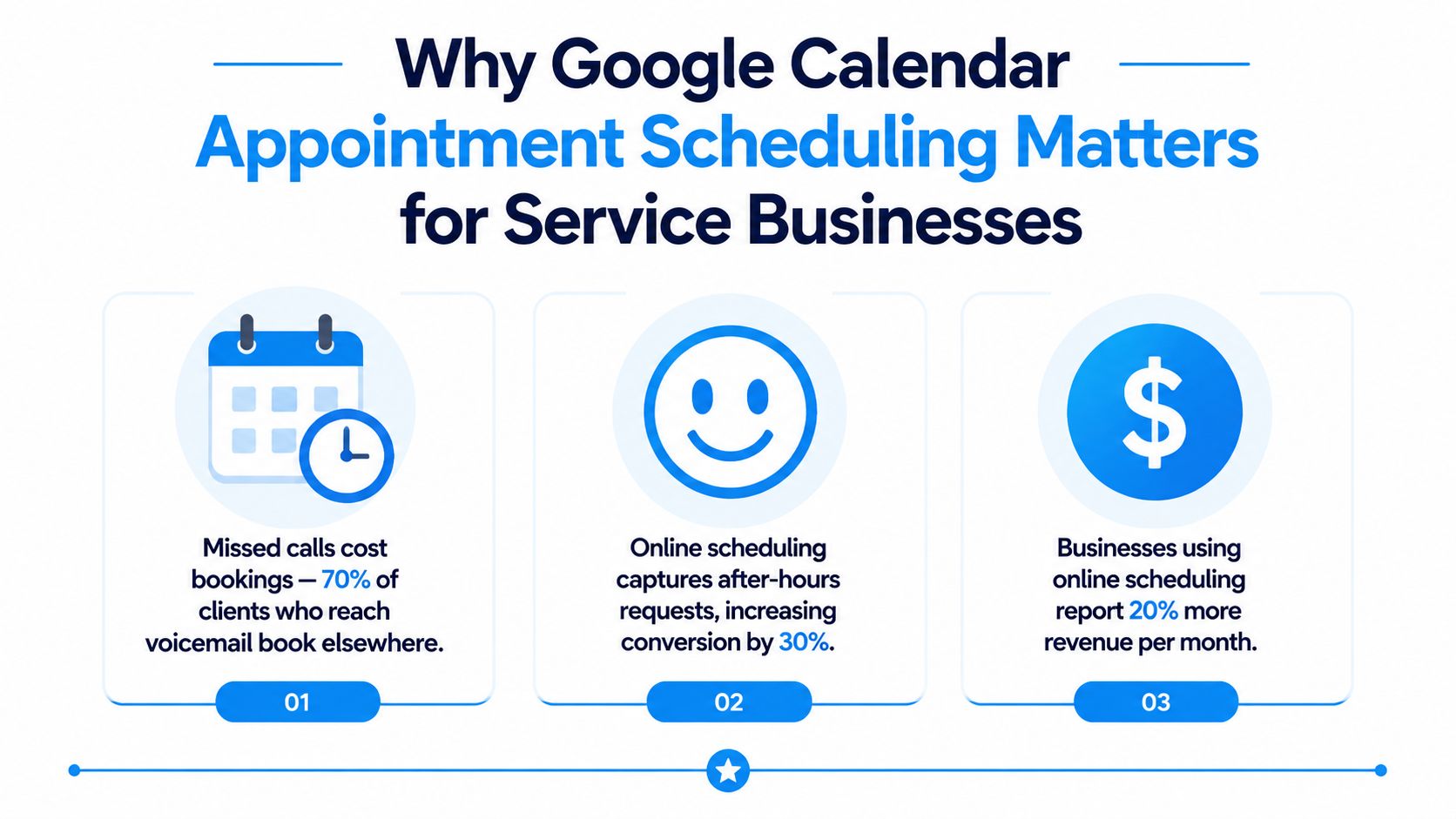
A prospective client calls your salon at 7 PM, reaches voicemail, and moves on to a competitor with a booking link. The same pattern appears in clinics, consultancies, legal practices, and home service companies. Your team may have excellent availability, but an unanswered call creates friction at the exact moment the customer is ready to act.
Appointment scheduling with Google Calendar gives smaller service businesses a practical starting point. You define availability in Calendar, create a booking page, and let clients select an open time without an email exchange. The booking appears in your calendar, which reduces the risk of accepting two appointments for the same period. But native scheduling solves access to availability, not every operational problem around intake, routing, reminders, or multi-staff coordination.
Why Google Calendar Appointment Scheduling Matters for Service Businesses
Google's product direction makes the feature more relevant than it once was. On March 18, 2024, Google announced that the older appointment slots feature would transition to appointment schedules. Existing slots remained active until August 8, 2024, while new bookings had to use appointment schedules after that date. The rollout began on July 18, 2024 for Rapid Release and August 8, 2024 for Scheduled Release, with availability expanded across several Google Workspace plans, Google Workspace Individual, Google One Premium, and nonprofit and education tiers. Google's transition announcement shows that booking pages are now treated as a standard Calendar workflow rather than an obscure add-on.
Where native booking works well
A solo consultant can publish a discovery-call schedule, collect a basic request, and protect preparation time by keeping the booking page separate from blocked calendar events. A therapist or wellness provider can offer defined consultation windows without exposing the rest of the working calendar. A home service operator can use a booking page for routine estimates while keeping urgent requests on a phone route.
The main benefit is low operational overhead. Customers receive a self-service path, and the provider continues using the calendar already trusted for internal commitments. Google's help documentation describes appointment schedules as a way to set availability and let others book directly from Calendar. That makes the feature suitable for simple services with predictable durations and one person responsible for the appointment.
Google has also expanded the feature over time. Custom durations in the five- to fourteen-minute range were introduced in October 2023, reducing the previous minimum of 15 minutes. Google later added appointment schedules on calendars beyond a user's primary calendar, and in 2025 introduced a pre-configured booking page for users who hadn't yet created a schedule. These changes support short consultations, intake calls, and more flexible calendar arrangements. Google's appointment schedule updates document that progression.
Operational reality: Google Calendar can make a booking available. It can't decide whether the request belongs with a particular employee, requires an urgent response, or needs qualification before anyone's calendar is touched.
The limitation appears as soon as the business has several staff members, multiple locations, different appointment types, or a meaningful volume of inbound calls. A booking page doesn't answer a caller who needs advice before choosing a service. It doesn't triage an emergency, capture a complete lead record, or provide a receptionist-style handoff after hours. For that gap, businesses often explore a layered model such as AI appointment booking with Recepta.ai, where the calendar remains the availability source and a conversational layer handles the interaction around it.
Configuring Your First Appointment Schedule
Start with the service, not the software. Write down what the customer is booking, who can deliver it, how long it takes, where it happens, and what must occur before the appointment is accepted. A schedule called “Consultation” is often too vague for a real operation. “Initial HVAC estimate,” “new patient intake,” or “30-minute legal consultation” gives the customer and the staff member a clearer expectation.
In Google Calendar, create an appointment schedule, name it clearly, define the available windows, select the appointment length, and configure the booking page. Google's appointment schedule setup guidance is the appropriate reference for the current interface and availability controls.
Configure the constraints before sharing the link
Availability should reflect the hours a person can serve customers, not every hour that appears empty on a calendar. If a consultant is available for calls in the afternoon but spends part of that period reviewing documents, those review blocks must stay protected. If a clinic has one room and two practitioners, the schedule must account for the room, not only each person's individual calendar.
Use this setup order:
- Name the appointment by outcome. Customers should know what they're reserving and what they should prepare.
- Set the duration. Include the conversation, not just the billable portion. A short intake may require additional documentation afterward.
- Add transition time. A provider who needs notes, cleanup, travel, or room turnover shouldn't publish consecutive appointments with no recovery space.
- Define the location. Add a Google Meet link, phone instruction, office address, or service-area note so the confirmation doesn't create another question.
- Set the booking window. Google provides controls for how far ahead and how close to the appointment time a customer can book. Times outside those limits won't appear on the booking page. Google's booking-window documentation explains this behavior.
- Review notifications and cancellation handling. The customer and staff member need clear confirmations, changes, and cancellations. Don't assume a booking link alone communicates your policy.
Test the schedule like a customer
Open the booking page in a private browser window. Try a time that should be unavailable, a time blocked by a calendar event, and a time outside the booking horizon. Check the confirmation details from the customer's perspective. Then make a test booking and verify that the event lands on the correct calendar with the correct timezone and location.
For a consulting practice, a useful first schedule might offer one defined consultation type during carefully protected work windows. For a multi-staff service business, create separate schedules only when the service, staff ownership, or availability differs. Multiple loosely managed links can confuse customers and create administrative work rather than reducing it.
A personal Google Account or Workspace Business Starter user can create only a single booking page. Google's documentation also describes controls such as buffer time, maximum bookings per day, and date-specific availability as editable appointment-schedule settings. The Google Calendar help page on appointment schedules is useful for checking plan-specific behavior before designing a larger workflow.
Mastering Timezones, Buffers, and Booking Windows
Most production scheduling failures don't begin with the booking page. They begin with assumptions about time. A customer books from one region, the provider works in another, and someone interprets a displayed time differently. Google Calendar can present converted times, but the business still has to define the source timezone, location, and communication language consistently.
Use an explicit timezone for every timed appointment. For integrations, implementation guidance favors RFC 3339 dateTime values with explicit offsets, IANA timezone names, and a strict distinction between all-day date fields and timed events. Normalizing internal processing to UTC and ISO 8601 values can reduce ambiguity, but the customer-facing confirmation should still show the local time the customer expects.
Buffers protect the work behind the appointment
A therapist may need a notes period between clients. A home service company may need travel time that varies by job type. A consultant working with international clients may need space to finish one call before joining another. Native settings can express a general buffer, but they won't automatically understand every operational variable.
A fixed buffer works when the service is consistent. It becomes unreliable when a routine inspection and a complex installation share the same schedule. In that case, create distinct appointment types or route the request through a person or automation that can assess the service before committing a slot.
Booking windows shape customer behavior. Google states that times outside the selected advance-booking range and minimum-notice range don't appear on the booking page. A salon might open bookings 14 days ahead and close them 12 hours before each appointment, an example documented by Google. A business that combines a 24-hour minimum notice with a 30-day maximum booking horizon gives customers planning access while blocking same-day requests and distant over-commitment.
| Business Type | Buffer Time | Min Notice | Max Booking Window | Key Consideration |
|---|---|---|---|---|
| Therapy or wellness practice | Notes and room reset time | 24 hours | 30 days | Protect documentation time and avoid exposing sensitive operational gaps |
| Consulting practice | Review and call transition time | 24 hours | 30 days | Keep preparation work separate from public availability |
| Home services | Travel or dispatch padding | Varies by service | Defined service horizon | Don't use one buffer for jobs with different travel requirements |
| Salon or personal care | Cleanup and client turnover | 12 hours | 14 days | Keep the page manageable and reduce last-minute overbooking |
Reminder design deserves equal attention. A benchmark cited by LunaCal reports a 31% no-show rate without reminders, compared with 17% when both email and SMS reminders are used. The same report places stronger reminder setups in the 10% to 13% range. The calendar scheduling benchmarks report supports the operational conclusion: creating a slot is only the first control, while reminders protect the appointment after booking.
For practical guidance on reminder workflows, use this resource on reducing no-show appointments. The right configuration depends on service value, cancellation lead time, and how much preparation the provider must do.
When Native Calendar Scheduling Falls Short
Native Google Calendar scheduling is strongest when one person controls a simple service, the customer already understands what to book, and the booking page can answer the request without a conversation. It becomes insufficient when the business must interpret the request before selecting a calendar, or when calls continue arriving outside the booking page.
Consider a wellness clinic with three therapists. A public booking page may expose one person's availability, but it doesn't necessarily route by specialty, insurance requirement, appointment reason, or urgency. A law firm may need to determine practice area, jurisdiction, conflict-screening requirements, and whether the inquiry is appropriate before offering time. A home services company may need to separate emergencies from routine estimates and send each to a different response path.
Those aren't calendar problems. They're conversation and routing problems.
Compare the workflow, not just the booking link
| Scenario | Native Google Calendar | AI Receptionist Layer | Recommended Approach |
|---|---|---|---|
| Solo discovery calls | Provides a direct booking page and calendar availability | Adds conversational intake when callers need help | Native booking is usually sufficient |
| Multiple practitioners | Requires carefully managed calendars and manual routing | Can ask qualifying questions and route by service or staff capability | Add a routing layer when assignment becomes frequent |
| After-hours phone inquiries | Records nothing until someone responds | Can answer, capture details, and offer or request a booking path | Use phone coverage when voicemail causes leakage |
| Emergency versus routine requests | Doesn't interpret urgency on its own | Can identify the request type and escalate according to rules | Keep urgent cases out of a basic self-service flow |
| High-volume intake | Staff manually reconcile calls, forms, and calendar events | Automates data capture and sends qualified requests to the right workflow | Combine Calendar with CRM and escalation logic |
Google's own help materials indicate that users on a personal account or Workspace Business Starter can create only a single booking page. The native feature also centers on availability and basic booking-page controls rather than a full front-desk workflow. That makes it a sensible foundation for solo work, but a weak standalone operating system for multi-location or qualification-heavy businesses.
There's another technical boundary. The native appointment-scheduling experience is distinct from the general Google Calendar API. Community and support references indicate that developers don't have a public API for directly manipulating the appointment-scheduling feature itself. Integrators commonly use standard Calendar event creation and custom availability logic instead, which requires careful testing around conflicts, timezones, and cancellations.
A layered option such as automated appointment scheduling software from Recepta.ai can sit between the customer and the calendar. The important design decision isn't whether AI replaces Calendar. It's whether the business needs a conversational intake and escalation layer before a calendar event should be created.
Decision rule: If every customer can choose the right service and staff member without assistance, native booking may be enough. If the business must ask questions before booking, add a routing layer before adding more booking links.
Integrating Calendar Scheduling With CRMs and Phone Systems
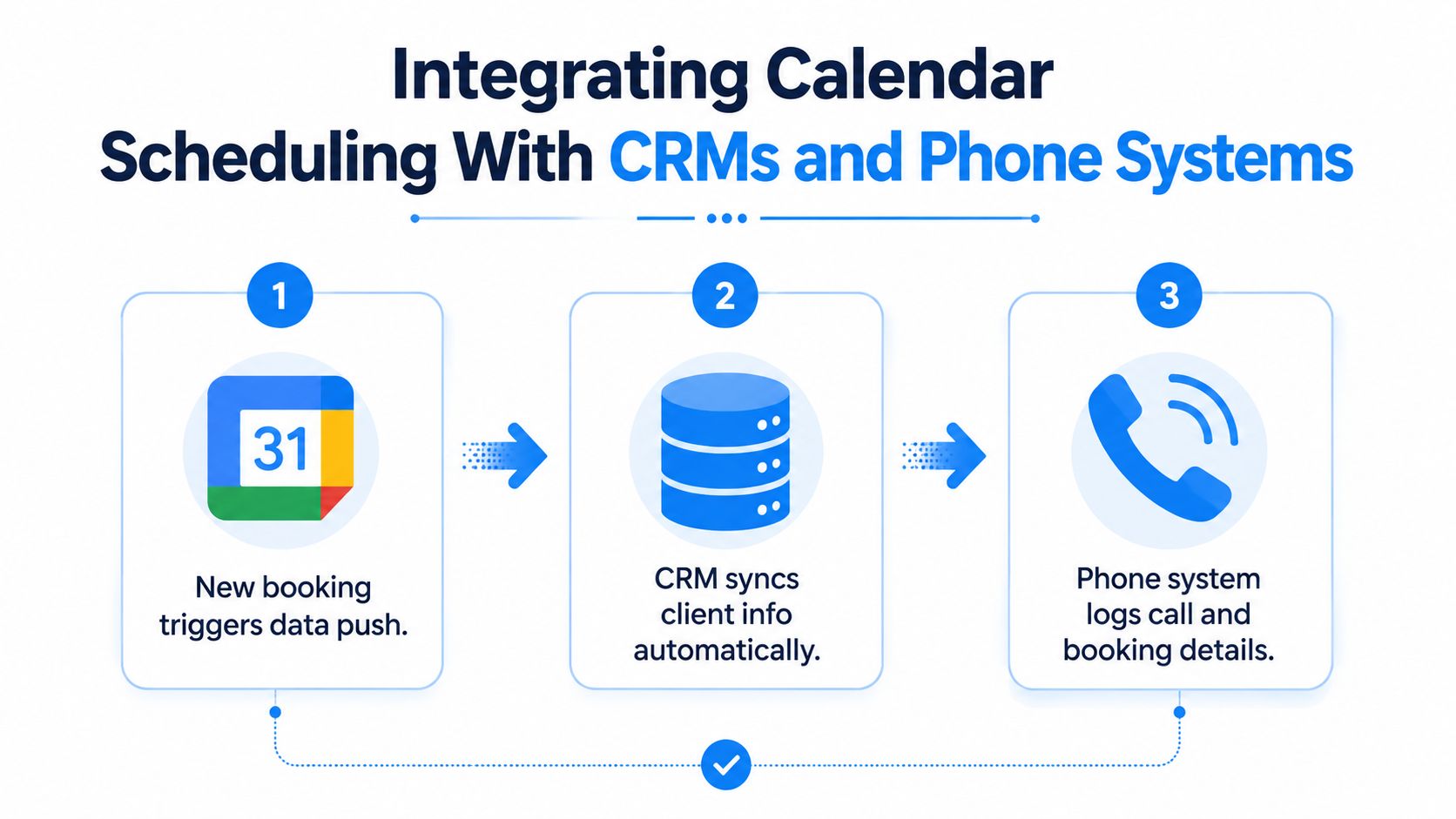
A calendar event isn't a complete customer record. It tells the team that a meeting exists, but the CRM should also know who booked, what they requested, how they arrived, and what follow-up is due. The integration should move that information without creating duplicate contacts or dropping events.
Start with one workflow in Zapier or Make.com. A new Google Calendar booking can trigger a CRM contact search, create or update the record, place the lead in an appropriate pipeline stage, and send a confirmation or internal notification. Keep the first automation narrow. More branches create more failure points.
Build and verify the data path
Use this sequence:
- Trigger: Watch for a newly created or changed Calendar event, not only a new contact.
- Match: Search the CRM by a stable identifier, usually the customer's email address, before creating a record.
- Map: Store the appointment type, start time, timezone, location, notes, and source in separate CRM fields.
- Act: Assign the record, create a task, send a confirmation, or notify the responsible employee.
- Monitor: Log failures and test cancellations, reschedules, and duplicate submissions.
Email normalization is a common source of duplicates. A CRM may treat capitalization, whitespace, or alternate addresses inconsistently. Timestamp fields create another problem when Calendar stores an offset but the CRM interprets the value in a default timezone. Store the original timezone context and confirm that the displayed appointment matches the customer's confirmation.
For phone systems such as RingCentral, Aircall, or Twilio, connect the call record to the CRM contact and the scheduled event. Useful actions include click-to-call from a calendar-related CRM record, automatic call logging, and IVR routing based on service type or staff availability. Don't route every caller to the next open slot without checking whether that person can deliver the requested service.
Businesses evaluating phone and CRM workflows may also find SnapDial for CRM workflow efficiency useful when assessing how call activity and customer records should connect.
Google Calendar integration guidance from Recepta.ai can help frame the calendar side of the workflow, but production validation still belongs to the implementation team. Before launch, place a test booking, edit it, cancel it, create a duplicate-looking contact, and force an automation failure. Confirm that each event produces the expected CRM outcome and that someone receives an alert when a webhook or automation step fails.
Building a Complete Scheduling Workflow for Your Business
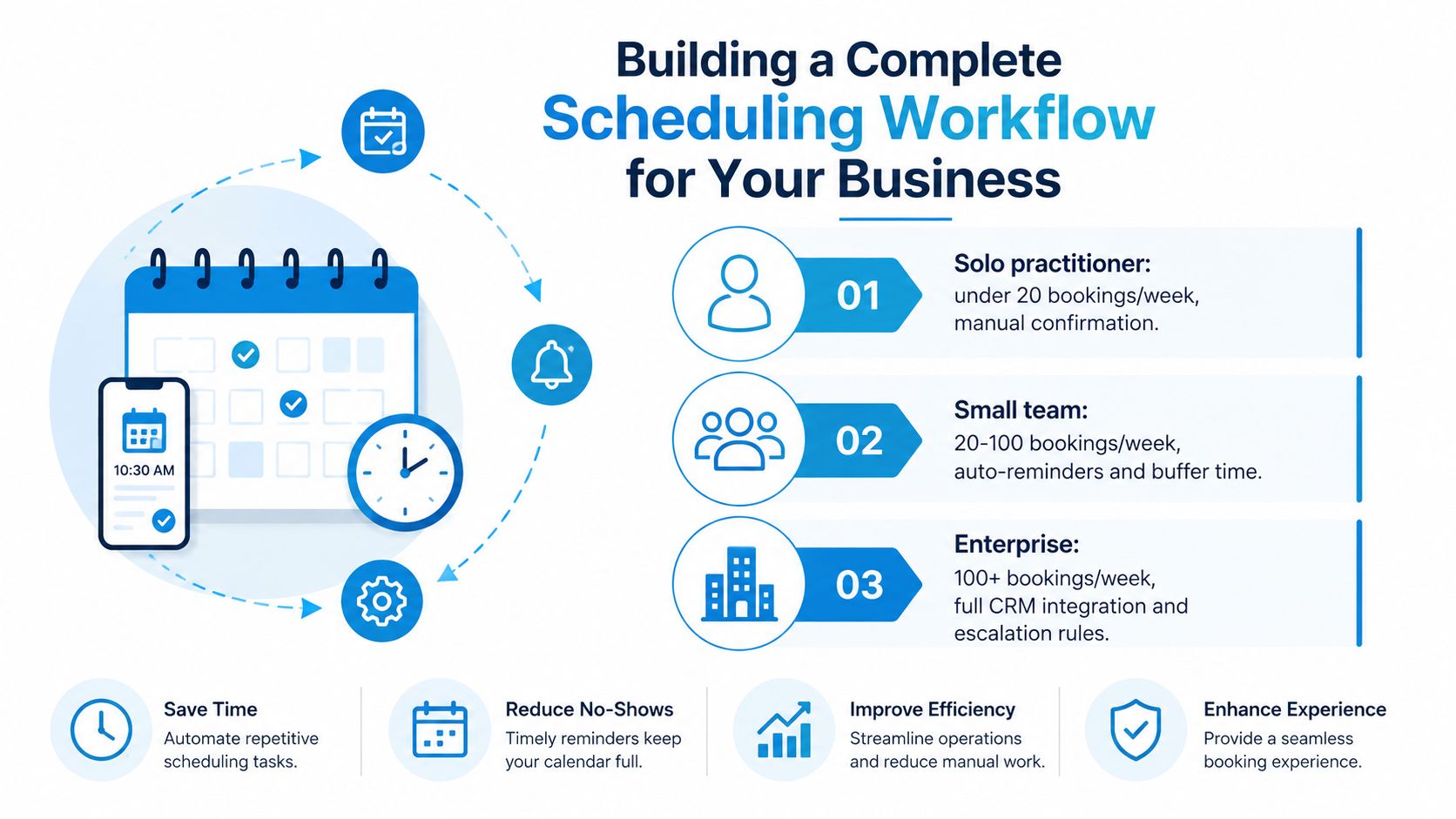
The right scheduling stack follows operational complexity, not ambition. A solo professional shouldn't buy a multi-layer system to manage a straightforward booking page. A growing service team shouldn't keep adding disconnected links after staff begin manually triaging requests.
| Business Profile | Calendar Foundation | Integration Layer | Escalation Layer |
|---|---|---|---|
| Solo practitioner, one staff member and under 20 bookings per week | One clear appointment schedule, realistic availability, buffers, and booking limits | Light CRM or spreadsheet capture, manual confirmation where appropriate | Phone or human response for exceptions |
| Growing team, 2 to 8 staff and 20 to 100 bookings per week | Separate service or staff schedules, shared calendars, protected capacity | Zapier or Make.com, CRM updates, reminder workflows | AI or human intake for routing and after-hours demand |
| High-volume operation, 8 or more staff and 100 or more bookings per week | Structured calendars, service rules, location constraints, and controlled availability | CRM, telephony, monitoring, and failure alerts | Formal escalation rules, qualification, dispatch, and human handoff |
These ranges are planning categories, not universal thresholds. The better question is where the current workflow leaks. Count unanswered calls, requests that wait until the next business day, bookings assigned to the wrong person, and appointments that require manual correction.
A practical rollout sequence
Phase one starts with native scheduling. Publish one or two appointment types, define booking windows, test timezones, and observe how customers use the page. Don't build complex automation before the business understands its real demand.
Phase two connects the records. Push bookings into the CRM, add internal notifications, and create a reliable cancellation and rescheduling path. A booking that never reaches the person responsible for preparation is an operational failure even if Calendar recorded it correctly.
Phase three adds escalation. Introduce phone handling or conversational qualification when staff are losing requests outside business hours, routing callers manually, or spending too much time determining which schedule applies. Keep the calendar as the source of availability, but put the decision layer in front of it.
For teams building a customer-facing site, a guide to booking website features and launch can help connect the booking page to the broader website experience. The link should support the operational workflow, not merely decorate the homepage.
Before choosing another platform, answer four questions: How many calls arrive outside staffed hours? Which bookings need qualification? How many people or locations share capacity? What happens when an automation fails? If the answers are simple, Google Calendar may remain the right foundation. If they involve routing, urgency, or repeated manual intervention, add the missing layer instead of creating more booking pages.
Recepta.ai can answer inbound calls, capture and qualify leads, schedule appointments directly on Google Calendar, and escalate conversations to human support when the situation requires it. Visit Recepta.ai to see how a 24/7 receptionist layer can fit around your existing calendar workflow.