
Google Calendar Integration: A Complete Guide for 2026
A missed appointment usually doesn't start with bad service. It starts with two calendars that stopped agreeing.
A plumbing company gets a website booking at 8:12 a.m. The office calendar shows an open slot. The technician's Google Calendar still has a follow-up visit that someone moved the night before. The customer gets a confirmation anyway. By 9:00 a.m., the dispatcher is calling around, the tech is driving across town, and the customer is already annoyed.
That's the core reason a Google Calendar integration matters. It isn't about adding another app connection. It's about making sure your booking system, team calendar, reminders, and client communication all point to the same schedule.
For home services, healthcare, and legal teams, the difference is operational. Your calendar becomes the system that controls dispatch, room usage, consultations, intake timing, and follow-ups. When the integration is configured well, staff stop reconciling schedules by hand and start trusting the schedule they see.
Stop Juggling Schedules Start Automating
Manual calendar management breaks down fast when appointments come from more than one place. A phone call lands with your receptionist. A website form creates another booking. A staff member drags an event to a new time in Google Calendar. If those actions don't sync back to one system, your team starts working from fragments.
A direct Google Calendar integration fixes that by turning the calendar into a shared operational layer instead of a personal reference tool. In practical terms, the booking created in your scheduling platform appears where the technician, hygienist, attorney, or office coordinator already works. If someone updates the appointment, everyone sees the same version.
For a home service business, that means the dispatcher doesn't have to text technicians to confirm every change. For a dental clinic, the front desk doesn't have to compare the practice schedule against a doctor's separate Google Calendar. For a law office, a client consultation can move once and stay moved everywhere.
Practical rule: If your team still “checks with someone” before confirming an appointment, your scheduling process isn't integrated enough.
Platforms that connect booking, communication, and calendar logic start paying off. A system like appointment scheduling software for small business works best when the calendar isn't just displaying appointments, but actively syncing availability and updates.
The immediate gain is simple. Fewer double-bookings. Fewer “I thought you moved that” conversations. Less admin time spent copying details from one screen to another.
The bigger gain is consistency. Your team starts trusting the same schedule, and your customers feel that professionalism in every confirmation, reminder, and reschedule.
Preparing for a Flawless Integration
Most Google Calendar integration problems begin before anyone clicks Connect. The setup looks simple, but the quality of the result depends on decisions you make first.
Choose the right calendar first
Don't connect the first calendar you see just because it's there. Decide whether your team should use a primary calendar or a dedicated operational calendar such as “Bookings,” “Dispatch,” or “Client Appointments.”
A dedicated calendar usually works better when:
- Staff mix personal and work events: You keep client appointments separate from private holds and internal reminders.
- Multiple people need visibility: Shared service calendars are easier to manage for dispatch, intake, and cross-coverage.
- You want cleaner reporting: Operational events stay distinct from everything else in Google Calendar.
For a solo attorney, the primary calendar may be fine. For a cleaning company with office staff and field crews, a separate calendar is usually the safer choice.
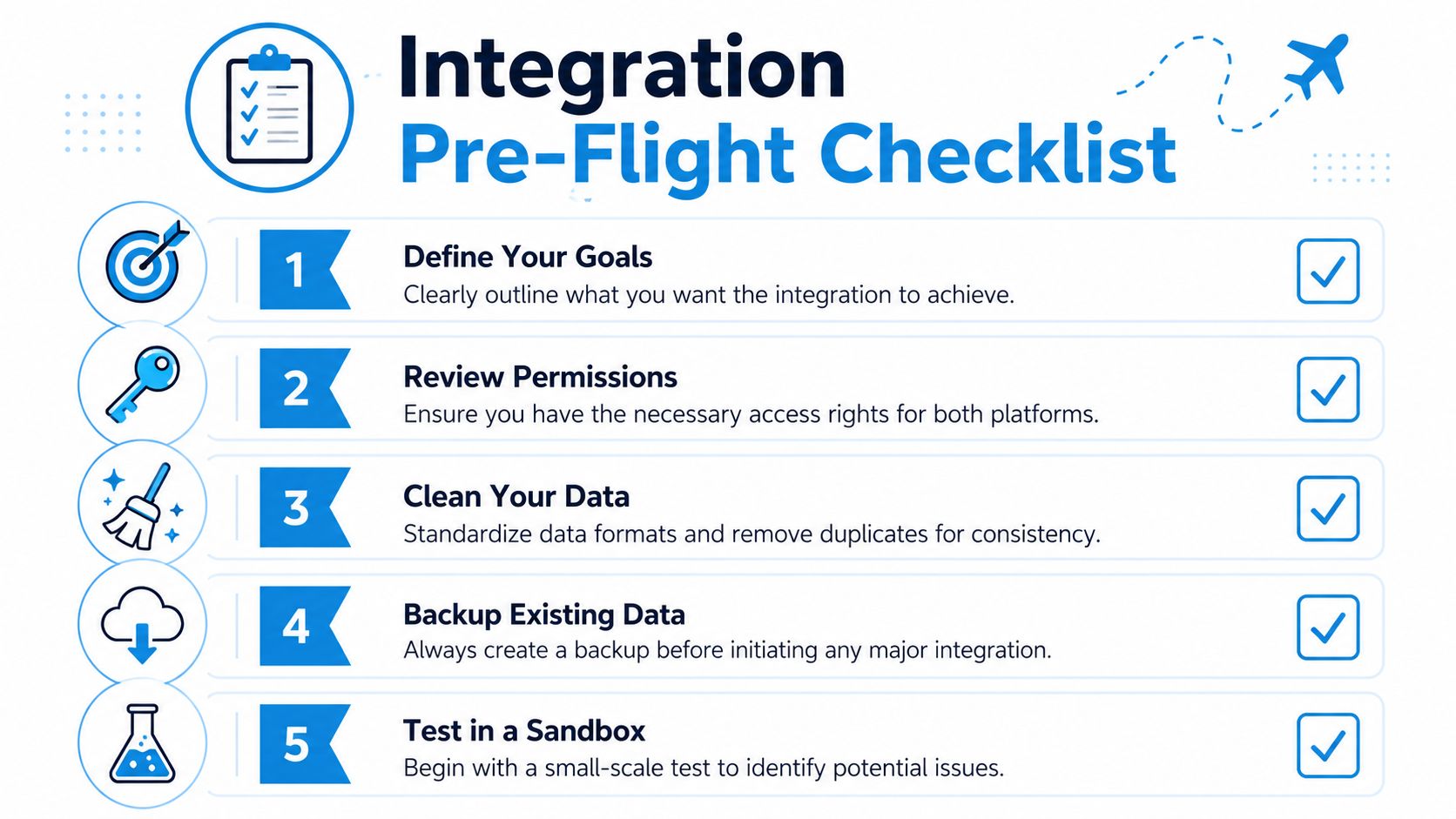
Run a pre-flight check on permissions and data
Permissions are where many integrations often lead to issues. Todoist's Google Calendar setup is a good example: users must check all three required permission boxes in Settings > Calendars, and missing even one causes the integration to fail entirely, as shown in Todoist's calendar integration instructions.
That's a useful reminder because most calendar connections are strict in the same way. Partial access often behaves like no access.
Before connecting anything, check these items:
- Account authority: Make sure the Google account you're using can authorize the calendar your business wants to sync.
- Calendar hygiene: Remove duplicate test events, outdated holds, and abandoned recurring blocks that could confuse availability.
- Ownership clarity: Confirm who owns the calendar and who needs edit rights after the integration goes live.
- Backup habit: Export or document your current setup if the calendar already runs core business operations.
A clean calendar produces cleaner automation. If your team has been working around clutter for months, the integration will inherit that clutter.
If your business relies on multiple systems, this is also the point to review how the calendar should connect with CRM, intake, reminders, and internal workflows. A broader guide to third-party integrations helps frame those dependencies before they turn into avoidable sync issues.
Connecting Your Calendars Authentication Explained
A dispatcher at a home services company books jobs all morning, but nothing reaches the technician calendars because the Google connection was never fully authorized. A legal intake team has the opposite problem. Events are writing into attorney calendars, but nobody realized the app was granted broader access than the workflow required. Authentication decides both outcomes.
What OAuth is actually doing
Most production Google Calendar integrations use OAuth 2.0. It lets a user approve limited access to a calendar without sharing their Google password with the scheduling platform.
In practice, that approval creates a permission-based connection between Google and the app. The app can then read free and busy times, create events, or update appointments based on the scopes you approved. If you want a clearer picture of how live systems keep those updates current after authentication, this guide to real-time data sync between business systems is useful context.
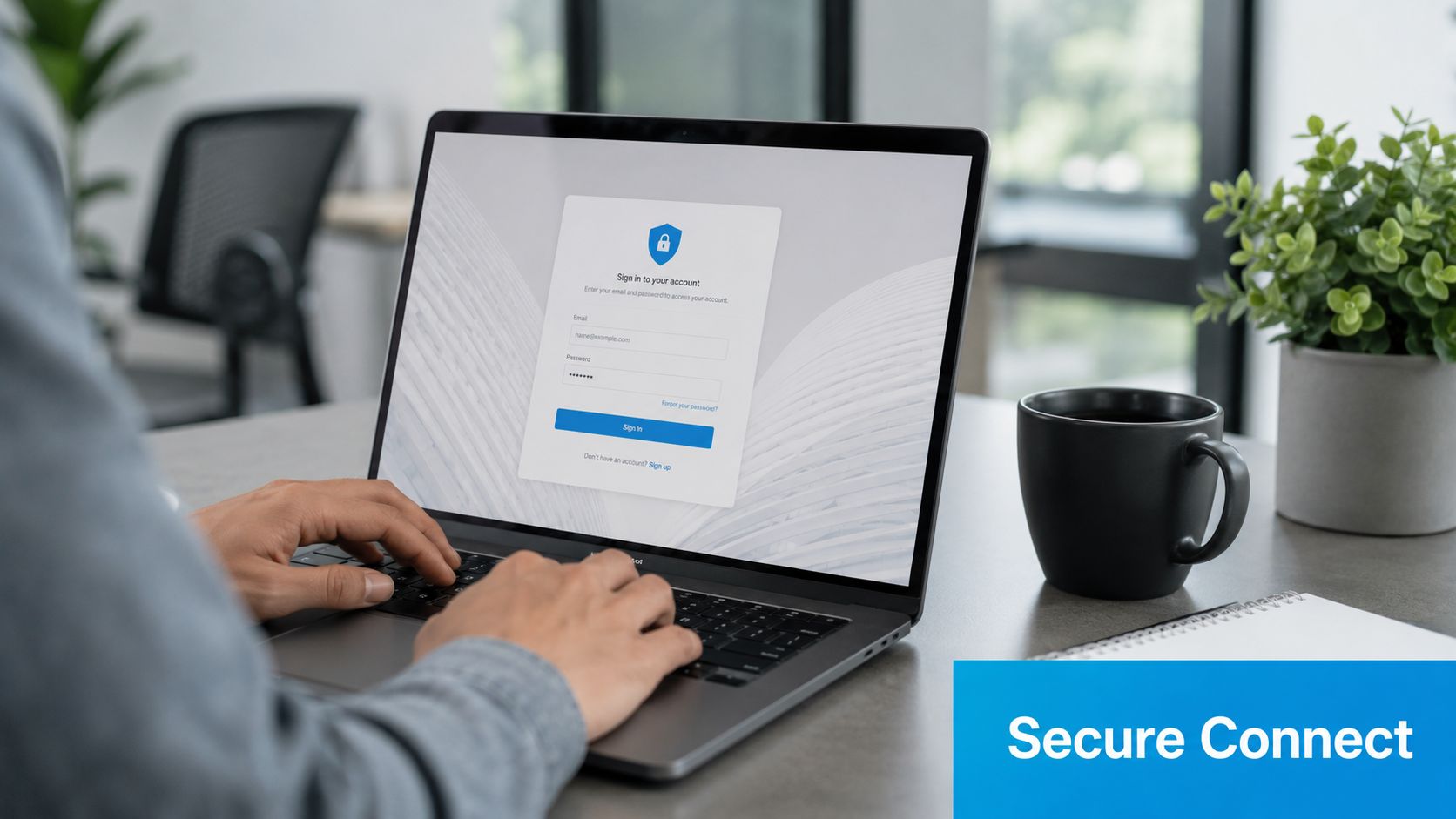
For most client-facing scheduling setups, the authorization code flow is the one that matters. A staff member signs in with Google, reviews the consent screen, approves access, and returns to the application with an active connection.
What the connection flow looks like
From the user side, the flow is short:
- Open the integration settings in your scheduling, intake, or operations platform.
- Choose Google Calendar.
- Sign in to the correct Google account.
- Review the requested permissions.
- Approve access and return to the platform.
The technical details sit behind that screen. The platform receives tokens that let it act within the permissions granted, and those tokens are what keep calendar actions working after the initial login.
That distinction matters during implementation. In a law firm, the person clicking Approve should usually be the attorney or admin account that owns the working calendar, not a temporary staff login. In a home services company, each field technician may need their own connection if appointments should land on individual calendars instead of a shared office calendar.
What usually causes confusion
Teams often assume the first Google login is enough. It is not always enough.
A calendar can connect successfully and still fail in production if the wrong account was used, the app requested read-only access, or the organization blocks third-party apps until an administrator approves them. Those are common rollout issues in healthcare groups, legal offices, and multi-location service businesses where Google Workspace policies are centrally managed.
Custom builds add another layer. If your team is creating its own integration instead of using a ready-made connector, you may need to configure an OAuth consent screen, set authorized redirect URIs, and submit the app for Google review before broad deployment. That review step can affect launch timing, so it is better to plan for it early than discover it during go-live week.
A short walkthrough helps if you want to see the connection process in motion:
What to approve and what to question
Read Google's permission requests in operational terms:
- Read availability: lets the system avoid offering times that are already blocked.
- Create events: lets new appointments appear on the calendar.
- Edit events: lets reschedules, cancellations, and time changes stay accurate after booking.
- Access related calendar details: may support reminders, attendee updates, or event metadata, depending on the software.
Approve the smallest set of permissions that still supports the workflow you need. If a med spa wants online booking plus staff reschedules, read-only access will fall short. If a legal intake tool only checks open consultation slots, edit access may be unnecessary.
If the vendor cannot explain each requested permission in plain business language, pause the setup and ask before anyone clicks Approve.
Mastering Two-Way Sync and Field Mapping
Two-way sync is the point where a Google Calendar integration starts saving your staff from cleanup work. If a booking changes in one system, the other system needs to reflect that change before someone acts on stale information.
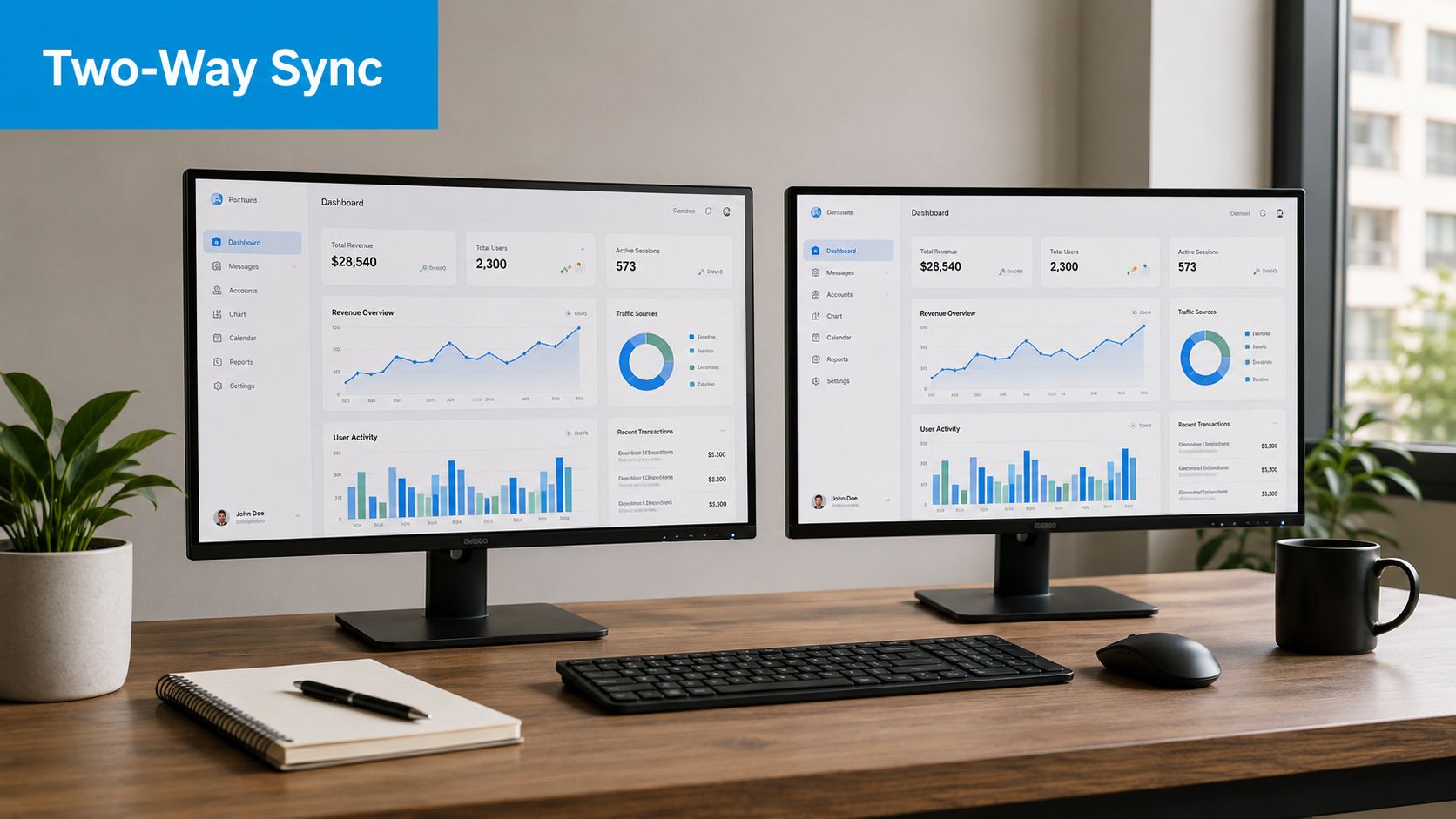
A simple test catches weak setups fast. Reschedule an appointment in your scheduling platform. Then edit the same event in Google Calendar. If one side updates while the other lags, duplicates, or drops notes, the integration is only doing part of the job.
Wrike shows the model clearly in its Google Calendar integration example. Task dates and times update across both systems, which is the behavior operations teams want from appointment scheduling too. The principle is the same whether you are coordinating project work, HVAC service calls, or client consultations.
The business impact is easier to see in real workflows. A plumbing office moves a same-day repair from 1:00 PM to 3:00 PM after a technician runs behind. The field tech should see the new time in Google Calendar without waiting for office staff to call or text. A law firm shifts an intake consult because an attorney is held in court. If that change only lives in Google Calendar and never reaches the intake or case system, the client confirmation, matter notes, and staff schedule drift apart.
Field mapping decides whether synced events are usable or just present.
A generic event title like “Appointment” forces people to open three systems to understand what is happening. A mapped event gives the technician, coordinator, or attorney enough context to act from the calendar itself. In practice, the field choices should match the work:
- Customer or client name to event title: “Nguyen HVAC Tune-Up” or “Lopez Estate Planning Consult” gives immediate context.
- Address to location: useful for home services teams that launch directions from the calendar event.
- Intake notes, issue summary, or matter details to description: enough detail to prepare, without stuffing the title.
- Assigned staff to attendee, organizer, or selected calendar: the right event lands on the right person's schedule.
- Status values to event updates: canceled, confirmed, or rescheduled should not remain hidden in the source system.
Good mapping also means deciding what not to sync. Legal teams often limit what appears in the title because calendars are visible on shared screens. Healthcare teams may keep event titles minimal and put only operational details into approved fields, based on their privacy rules. Home services companies usually want more location and job context because the technician is using the calendar on the road.
Time handling needs the same level of discipline. Store the event start and end times with an explicit time zone. Do not assume both systems interpret local time the same way, especially if you book in one region and dispatch in another. Daylight saving changes expose this mistake every year.
Update method matters too. Polling every few minutes can be acceptable for low-volume internal calendars. It is a poor fit for businesses where customers reschedule close to appointment time. Push-based updates usually keep systems aligned faster and reduce the window where dispatch, intake, or front-desk staff are looking at outdated information. If you are designing around fast changes, review this guide to real-time data sync architecture before finalizing your production mapping rules.
One last implementation detail saves a lot of rework. Pick a single system of record for each field. If Google Calendar owns event duration but your scheduling platform also tries to overwrite duration on every sync, you create edit conflicts that look random to users. Set ownership rules field by field, test reschedules and cancellations from both sides, and confirm what happens to reminders, attendees, notes, and deleted events before rollout.
Industry-Specific Integration Workflows
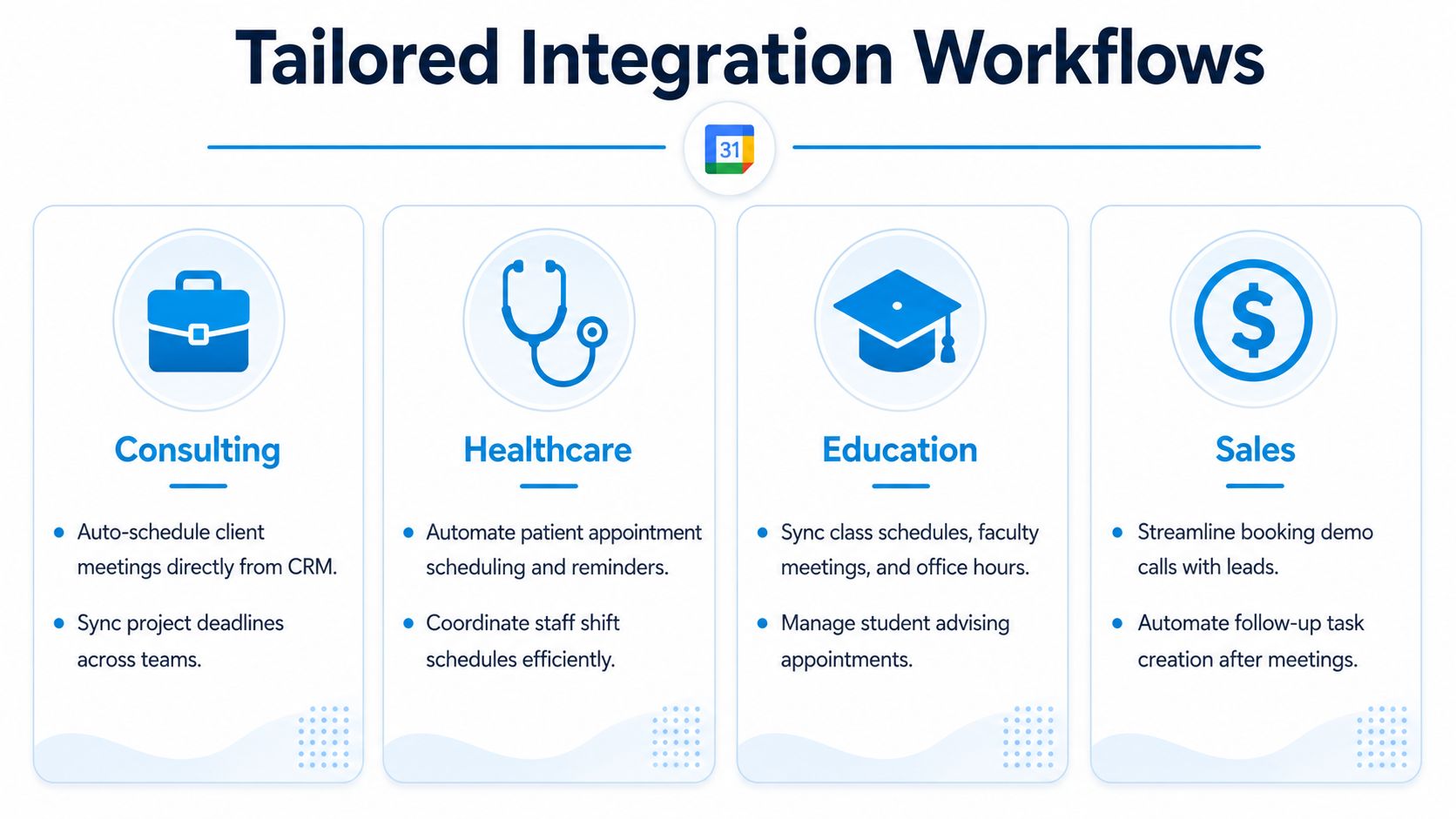
A Google Calendar integration only works if the workflow matches how the business books, dispatches, and follows up. The API behavior may be consistent, but the event design should reflect the decisions each team needs to make during the day.
Home services workflow
In home services, the calendar is often part booking tool, part dispatch board. The office needs to know who is assigned, where the technician is going, what the customer reported, and whether the time window is still realistic.
A strong setup puts the customer name and job type in the event title, the service address in the location field, and the work order summary in the description. If a business takes requests through a website or Google Forms, event creation can be automated with Google Apps Script triggers on form submission, using the approach documented in the Google Apps Script installable triggers guide. That removes manual re-entry and cuts the usual morning backlog for teams that receive overnight requests.
For a cleaning company, that can mean a submitted “Request Cleaning” form creates a calendar event with the requested date, property address, and access notes already attached. Office staff review exceptions instead of typing every appointment from scratch.
Healthcare workflow
Healthcare teams need the calendar to show capacity clearly without turning it into a medical record. Front-desk staff need to see appointment type, provider, and room or chair usage quickly. They do not need protected clinical detail in the event body.
Color-coding works well here if the categories are operational. New patient visit, hygiene check, procedure block, telehealth follow-up. Staff can scan the day and spot bottlenecks before they start calling patients to reschedule.
Google Calendar's Appointment Schedules feature can also fit clinics that want a controlled self-booking process. A dental office, for example, can publish separate booking pages for short hygiene visits and longer consults, then route each booking to the correct provider calendar. Google documents the setup steps in its Appointment Schedules help page. The main trade-off is control. Native booking is quick to launch, but many practices still need their practice management system to remain the source of truth for patient status, insurance checks, and reminders.
Legal workflow
Legal scheduling requires tighter event structure than most service businesses. A vague event title like “consult” creates confusion fast when multiple attorneys, matters, and meeting types are involved.
A better pattern is simple:
- Event title: client name or matter name
- Description: intake summary, responsible attorney, and internal reference number
- Conference details: Google Meet link when the consultation is remote
I usually recommend a conservative approach here. Put enough detail in the calendar for coordination, but keep sensitive case facts in the case management system, not in an event description that may be visible across a shared calendar.
Permissions matter more in legal than in many other setups. Intake staff may need scheduling access, while attorneys want colleagues to see availability without exposing full matter detail. Google Calendar's event visibility and calendar sharing controls support that model, as described in the Google Calendar sharing permissions documentation.
The pattern across all three industries is the same. Build the calendar around the operational decision the team needs to make next. In home services, that is dispatch. In healthcare, it is capacity. In legal, it is coordination with controlled visibility.
Troubleshooting Common Sync Errors
A dispatcher books a same-day furnace repair. The customer gets a confirmation. The technician never sees it on their calendar. In a law office, the same kind of miss can mean a consult is confirmed in the intake system but missing from the attorney's schedule. Those failures usually look random from the front end, but the pattern is usually traceable once you isolate where the sync broke.
Start with the symptom, not the reconnect button
Check scope first. Is the issue tied to one staff member, one calendar, one appointment type, or every update created after a certain time? That first pass usually tells you whether you are dealing with permissions, field mapping, rate limits, or two systems editing the same event.
This matters more in multi-user setups than many teams expect. A home services company may route every booking through a single office account if the integration was set up quickly. A legal practice may let intake staff create events on behalf of attorneys, but only some attorneys granted calendar access correctly. The visible symptom is "sync is broken." The actual cause is often much narrower.
Common sync errors and what to check first
| Symptom | Likely Cause | What to check |
|---|---|---|
| New appointments do not appear in Google Calendar | Wrong destination calendar | Confirm which calendar the integration writes to. Test with a new booking and verify the calendar ID, not just the display name |
| One user syncs correctly but another does not | Missing or expired authorization | Reconnect only the affected user and verify the granted permissions match the workflow |
| Updates arrive late during busy periods | Too many repeated checks against the same account | Reduce unnecessary polling, spread activity across the right user accounts, and review how often the integration requests changes |
| Rescheduled events revert to older times | More than one app is editing the same event | Identify every connected scheduling tool and decide which system owns time, title, attendees, and notes |
| “Permission denied” appears after setup worked before | Calendar sharing or app access changed | Review Google account access, shared calendar settings, and whether an admin revoked the app |
| A booking exists in the platform but not on the assigned staff calendar | Calendar mapping points to a shared or default calendar | Check the user-to-calendar mapping with a live record, especially for teams that share inboxes or front-desk workflows |
The failures that waste the most time
Expired watch channels are a common one. If your integration relies on push notifications and renewal fails, changes stop arriving without an obvious warning inside the booking workflow. The result is drift. A canceled appointment still appears active, or a reschedule reaches one system but not the other. If the vendor supports push-based sync, ask how they renew channels, how they detect expiration, and what fallback process runs when notifications stop.
Conflicting writes are just as common. I see this often when a business adds a second tool for reminders, routing, or intake after the original calendar sync is already live. One system updates the event title. Another system rewrites the same event from stale data. In home services, that can strip out dispatch notes or technician assignment details. In legal, it can replace a carefully structured matter-based title with a generic "consultation" label.
Service account and delegated access issues also show up often in larger organizations. If one shared calendar works and another returns access errors, check whether the account has the calendar rights the integration assumes. Do not guess here. Review the exact account, the exact calendar, and the exact permission level.
Logging matters because many failures happen without an error notification visible to staff. If a team only checks whether the booking was created in the front-end system, they miss whether the create, update, or delete call completed in Google Calendar. Good logs should let you answer four questions fast: what record changed, which system sent the update, which calendar was targeted, and what response came back.
For healthcare-adjacent teams, troubleshooting also needs a privacy filter. If staff start pasting patient detail into event descriptions while trying to diagnose a sync issue, the fix creates a new risk. Teams working in regulated appointment flows should pair calendar debugging with a review of HIPAA-compliant scheduling software practices and the vendor's broader approach to data security.
If the cause is still unclear, stop changing settings and trace one real appointment from creation to calendar write. That method is slower for five minutes and faster for the rest of the project.
Security Privacy and Maximizing Your Setup
A dispatcher at a plumbing company should not be able to see more calendar data than they need. A legal assistant should not have to guess whether a court filing appointment synced correctly. Security and reliability become very practical once real client work depends on the calendar.
What secure access looks like in practice
Set up Google Calendar access with the smallest permission scope that still supports the workflow. If the integration only needs to check availability and create events, do not grant broad account access. Staff should authenticate through Google, not by sharing passwords, and an admin should be able to revoke access quickly if someone changes roles or leaves the company.
Calendar data often reveals more than the event title. It can expose client names, job locations, attorney schedules, and patterns in how your business operates. That is why legal and healthcare-adjacent teams should treat calendar permissions as part of client confidentiality, not just an IT setting.
For teams handling regulated appointment flows, review your process against HIPAA-compliant scheduling software practices before you decide what belongs in an event title, description, or attendee field.
Vendor review matters too. If your calendar integration also touches email, CRM records, intake forms, or document workflows, check the provider's broader approach to data security.
What actually improves reliability
Reliable calendar sync starts with ownership and constraints. Use one source of truth for booking creation. Decide which fields can update Google Calendar and which should stay locked to the practice management, CRM, or booking system. Without those rules, teams create duplicate edits, conflicting timestamps, and status changes that look random from the front line.
The best-performing setups are usually simple to audit. One calendar owner per queue or team. Clear service types. Predictable event naming. Limited write access. Renewal and access reviews on a schedule, not after a failure.
Industry workflow changes the right setup. A home services company may need technician calendars separated by territory so dispatch can reroute same-day jobs without exposing every employee's full schedule. A legal office may keep internal prep blocks on one calendar and client-facing appointments on another so intake staff can book safely without seeing everything. Healthcare-adjacent teams often need even tighter controls on what staff can place in event notes.
Small configuration choices affect adoption. If staff cannot tell at a glance whether an event came from the website, phone intake, or manual entry, they stop trusting the calendar and start calling or texting to confirm work that should already be visible.
A useful calendar integration gives staff confidence in what they are seeing and limits access to what they should not see.
A good Google Calendar integration supports one dependable operating schedule for booking, staffing, reminders, and follow-up. If you want to apply that in a live workflow, Recepta.ai is one option for connecting phone, booking, and scheduling activity with Google Calendar so availability checks, appointment creation, and follow-ups happen in the same system instead of across separate admin steps.