
Calendar Integration: A Guide to Business Automation
A lot of small business owners are living with the same routine: a customer calls while your team is in the field, someone writes the appointment on a sticky note, another person adds it to Google Calendar later, and by the end of the day two people think they own the same time slot.
That problem looks administrative. It isn't. It's operational.
When your calendar sits apart from your phone system, CRM, job management software, reminders, and staff schedules, every booking becomes a handoff. Every handoff creates delay, and delay creates mistakes. Calendar integration fixes that by turning your calendar into a live operating system for the business instead of a passive place where appointments go to die.
The Hidden Costs of a Disconnected Calendar
Monday starts with a reschedule. A client wants to move from Thursday to Tuesday morning. Your office manager updates the booking software but forgets to notify the technician. The technician still shows Thursday as blocked, Tuesday gets filled by someone else, and now you have one irritated customer, one confused employee, and one slot you can no longer sell.
That isn't rare. It's what disconnected systems produce.
In service businesses, scheduling errors don't stay inside the office. They show up at the front door, on the phone, and in online reviews. A double-booked cleaning job means a crew sits idle or rushes. A missed dental reminder leaves an expensive chair empty. A consultation that takes three emails to schedule gives a prospect enough time to call the next law firm.
Where the money leaks out
The cost usually shows up in three places:
- Lost revenue: An empty appointment slot can't be sold after the fact.
- Labor waste: Staff spend time fixing preventable scheduling mistakes instead of serving customers.
- Customer friction: People don't care whether the issue was your CRM, your calendar, or your receptionist. They remember that your business felt disorganized.
Practical rule: If your team has to copy appointment data from one system into another, your calendar process is already costing you money.
Calendar integration changes the role of the calendar. It stops being a digital wall planner and becomes the trigger point for the next action. When an appointment is booked, the right technician gets the event, the client gets confirmation, reminders go out, and the CRM record updates. When that appointment changes, those connected systems change with it.
For businesses that struggle with missed appointments, it's worth pairing calendar sync with a stronger reminder process. This guide on how to reduce no-show appointments is a good next step because reminders only work when the underlying schedule is accurate.
What Calendar Integration Means for Your Business
Think of your calendar as the switchboard for your operation.
A wall calendar tells you what's supposed to happen. An integrated calendar tells the rest of your business what to do next. That difference matters. Once scheduling data moves automatically between systems, your front desk, field staff, CRM, reminders, and reporting all start using the same source of truth.
Calendar integration also matters because manual admin still eats a huge amount of working time. One integration guide notes that over 40% of workers spend at least a quarter of their workweek on manual, repetitive tasks such as data entry in business software, which helps explain why scheduling automation has become so valuable (GetKnit calendar API integration guidance).
What it looks like in practice
A few examples make this concrete:
- Pest control company: A customer books a treatment window online. The appointment lands on the scheduler's calendar, the assigned technician sees it on their route, and the office doesn't need to re-enter the booking.
- Dental clinic: The practice management system updates the appointment, and the calendar reflects the change so reminder messages match the actual chair schedule.
- Law firm: A prospective client books a consultation, the attorney's availability is checked before confirmation, and the consultation can trigger an intake workflow.
A tutoring business works the same way. If you're evaluating how specialist tools handle booking logic, tutoring scheduling software is a useful example of how scheduling features can be designed for a service workflow rather than treated as a generic add-on.
The business benefits that actually matter
For a small business owner, the payoff isn't "better productivity" in the abstract. It's more specific:
| Operational issue | What integration changes |
|---|---|
| Staff manually checking availability | Systems can check calendar availability before offering times |
| Missed updates after reschedules | Changes can flow automatically to connected tools |
| Slow lead response | A prospect can book as soon as an open slot is identified |
| Conflicting team schedules | Shared availability becomes easier to coordinate |
Your calendar should answer one question instantly: "Can we take this appointment without creating a problem somewhere else?"
That is why calendar integration has moved beyond simple sync. It now sits inside scheduling, CRM follow-up, onboarding, resource planning, and meeting workflows. For a service business, that means fewer dropped balls at the exact moments customers decide whether to trust you.
Understanding Calendar Integration Architectures
Most owners don't need to know how to build an integration. They do need to know enough to ask better questions when a vendor says, "Yes, we integrate with Google and Outlook."
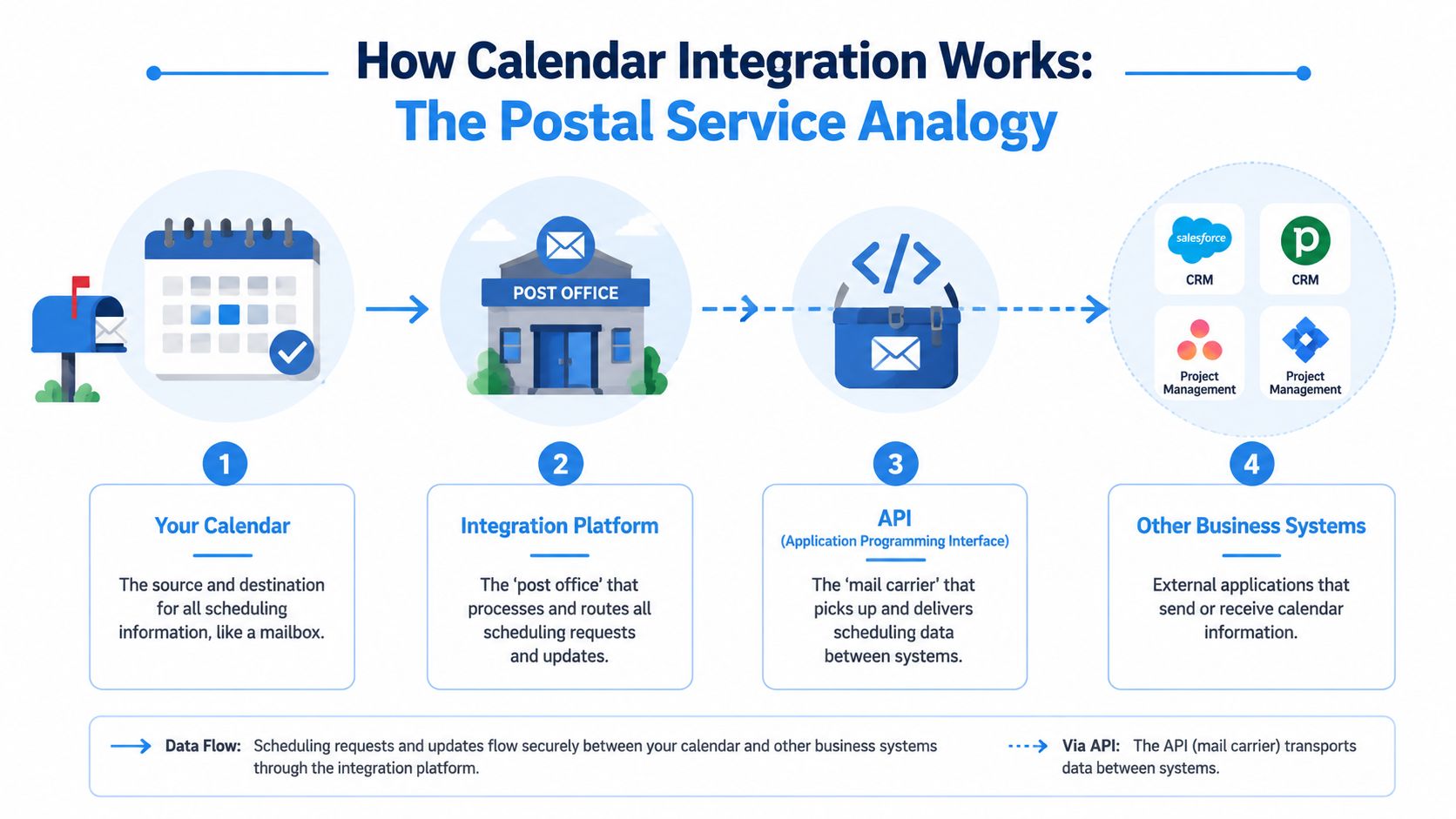
The simplest way to understand it is a postal service analogy. An event is the package. The API is the mail carrier. The integration platform is the sorting center. Your CRM, booking tool, and calendar are the addresses.
APIs and webhooks in plain English
An API is the mechanism software uses to send and receive calendar data. If a client books an appointment in one system, the API carries that booking into another system.
A webhook is the alert that says, "Something changed." Instead of asking every few minutes whether an event moved or was canceled, the system gets notified when the change happens. That's usually the difference between a schedule that feels live and one that always seems a step behind.
For many service businesses, that distinction matters more than the brand name on the software. A slow sync can create real operational damage. Your dispatcher may still see an old time slot as available. Your receptionist may confirm a time that has already been taken. Your technician may drive toward a job that was canceled an hour ago.
Two common architecture models
There are two broad ways businesses end up connecting their calendars.
Direct point-to-point
This is the simple route. Tool A connects straight to Google Calendar or Microsoft 365.
It can work well when:
- You have one main calendar system: A solo consultant or small clinic may only need a straightforward link.
- The workflow is narrow: Booking appointments and sending reminders may be enough.
- You want less setup: Native integrations are often easier to turn on.
It starts to break down when you add more systems, more locations, or both.
Hub and spoke
This model uses a middle layer, often a unified API or integration platform, to normalize differences between providers and distribute updates across multiple tools. That's useful because Google Calendar, Outlook, Exchange, and iCloud don't all represent events the same way.
A strong example of this approach is the unified API layer described by Nylas, which supports create, update, cancel operations, recurring event structures, and two-way sync across major providers, so teams can build one scheduling workflow instead of maintaining separate provider-specific logic (Nylas calendar API).
If you're trying to understand this broader design choice in the context of business systems, this piece on mastering ERP integration is helpful because the same architectural trade-offs apply. Simpler connections are faster at first. Shared integration layers age better as complexity grows.
What to ask vendors
Use this checklist when someone tells you their software "syncs with your calendar":
- How are updates sent? Ask whether they use real-time notifications or delayed checks.
- What happens on cancellation? A good integration handles more than new bookings.
- How are recurring appointments managed? Recurrence often exposes weak integrations.
- Do shared calendars work? Many teams schedule against pooled resources, not just one user's calendar.
- How do they prevent stale information? For this, strong real-time data sync matters operationally, not just technically.
A calendar integration isn't good because it connects. It's good because it stays accurate when real life gets messy.
Popular Platforms and Compatibility Concerns
Most small businesses run into the same three ecosystems first: Google Calendar, Microsoft 365, and Apple iCloud. On the surface they all do the same thing. In daily operations, they don't behave identically.
Google Calendar is often the easiest common denominator in smaller teams and service businesses. Microsoft 365 and Outlook show up heavily in firms with shared mailboxes, admin staff, and more formal scheduling processes. iCloud matters less in team operations, but it still appears when owners or staff use Apple devices as their primary work setup.
Not all "integrations" mean the same thing
When a software vendor says they integrate with your calendar, they might mean one of three things:
| Type | Best for | Limitation |
|---|---|---|
| Native integration | Straightforward workflows | Often narrower in scope |
| Third-party connector | Quick automation between apps | Can get messy as exceptions grow |
| Custom or API-based integration | Complex scheduling logic | Takes more planning |
The practical distinction is whether the tool can only see your calendar or whether it can also act on it. Read-only access is enough if you just want visibility. If you want software to schedule, reschedule, cancel, and trigger reminders, the sync model matters a lot more.
Recall.ai's guidance frames this clearly: read-only access works for visibility, but appointment orchestration requires bidirectional writes plus deduplication logic, and systems coordinating meetings or reminders should favor event-driven updates through webhooks or APIs rather than periodic polling (Recall.ai calendar integration docs).
A shortlist of questions before you buy
When evaluating scheduling or client communication software, ask these directly:
- Is the sync one-way or two-way? "Connected" isn't the same as bidirectional.
- How quickly do updates appear? Reschedules are where delays become expensive.
- Can it handle shared calendars? This matters for front desks, dispatch teams, and firms with pooled availability.
- What happens when a client cancels? You want the calendar, reminders, and records to stay aligned.
- Does it support your current workflow or force a new one? Good software should fit the operation you run.
If you're comparing tools for a smaller operation, this guide to appointment scheduling software for small business is a useful companion because it helps separate simple booking widgets from systems that can support actual operational coordination.
Implementing Calendar Integration A Step-by-Step Guide
The biggest mistake owners make is starting with the tool instead of the workflow.
Don't begin by asking, "Which integration app should I buy?" Start by asking, "Which scheduling problem is costing me the most?" The answer might be after-hours booking, missed reminders, handoffs between sales and service, or staff double-bookings.
Step 1 Map one high-value workflow
Choose a single workflow with a clear business outcome.
Good starting points include:
- New lead to booked consultation: Someone fills out a form or calls, sees live availability, and gets booked.
- Reschedule handling: A moved appointment updates the calendar, reminders, and internal records.
- Field dispatch: A booked job appears on the assigned technician's schedule without manual entry.
Keep it narrow. One working workflow beats five half-connected ones.
Step 2 Audit your current stack
Write down the tools involved in scheduling today. Include your phone system, website form, CRM, calendar, reminders, and any vertical software you use.
Then mark where staff re-enter data by hand. Those are your friction points.
A simple audit table helps:
| Tool | What it does | Manual step today |
|---|---|---|
| Website form | Captures inquiry | Staff calls back to schedule |
| CRM | Stores lead record | Appointment copied in later |
| Google Calendar or Outlook | Holds staff schedule | Team updates it separately |
| Reminder tool | Sends messages | Staff must trigger or verify |
Step 3 Choose the right connection method
Once you know the workflow, choose the simplest method that can support it.
- Native integration: Best when two systems already connect well and your process is standard.
- Connector platform: Useful for moderate workflows across several apps.
- Specialized scheduling or communications platform: Better when phone, booking, reminders, and CRM actions need to work together.
If Outlook is part of your workflow, it's worth understanding the practical mechanics of schedule changes. This guide on expert Outlook meeting rescheduling is useful because rescheduling is where weak integrations often expose themselves.
Step 4 Set permissions carefully
Most tools will ask for access through OAuth. Treat those permission screens like handing over keys to part of the business.
Give the system only the access it needs. If the workflow only requires reading availability, don't grant full write access. If it needs to create and update appointments, make sure those permissions are explicit and tested.
Field note: The most expensive scheduling bugs often come from permissions that were approved casually and understood poorly.
Step 5 Test like a customer and like a staff member
Before going live, run the whole process end to end.
Test these actions:
- Create a new appointment.
- Reschedule it.
- Cancel it.
- Change the assigned staff member.
- Confirm reminders and CRM updates still match.
This step matters because connected systems can speed work up only when the connections stay reliable. Microsoft notes that integrated tools can automatically reflect task or event changes in calendar views, reducing manual updates and scheduling conflicts, and one project-management integration guide reports tasks completed up to 30% faster when calendar and task systems are connected (Microsoft Outlook Calendar overview).
For a small business, the key takeaway isn't the number. It's that speed comes from removing re-entry, not from asking your staff to work harder.
Advanced Application The AI Receptionist Workflow
The clearest way to see the value of calendar integration is to follow one urgent customer call from start to finish.
A homeowner notices a plumbing leak after hours. They call your business at 8:40 p.m. No one is at the front desk. Without an integrated workflow, that call goes to voicemail, the customer keeps searching, and another company gets the job.
With an AI receptionist workflow, the calendar isn't just a reference point. It's part of the conversation.
How the workflow plays out
The system answers the call, identifies that the issue is urgent, and checks the synced availability of the on-call team. It doesn't offer random times. It offers times based on the actual schedule.
If the customer accepts a slot, the workflow can then:
- Book the appointment on the correct calendar
- Log the lead in the CRM
- Send confirmation to the customer
- Notify staff so the team sees the new appointment immediately
Integrated scheduling directly impacts revenue. The business doesn't lose the lead to voicemail, doesn't create extra admin work the next morning, and doesn't rely on someone remembering to update three separate systems.
One option in this category is Recepta.ai, which handles inbound calls, appointment scheduling, and real-time syncing with calendars and business systems. In practice, that means a live customer conversation can produce a booked appointment and an updated record without the usual back-and-forth between front desk, calendar, and CRM.
Why this matters more in service businesses
A salon can often rebook tomorrow. A law firm may recover a missed consultation next week. A plumbing, HVAC, or pest control business often can't. The customer has an immediate need, and the company that confirms a real appointment first usually wins.
That's why an AI receptionist is such a useful example of calendar integration. It exposes the full chain:
| Customer moment | Integrated action |
|---|---|
| Incoming call | Availability is checked |
| Time accepted | Calendar is updated |
| Appointment confirmed | Notifications go out |
| Record created | CRM stays aligned |
Here's a short product walkthrough that shows the idea in action:
The strongest scheduling systems don't just store appointments. They convert live intent into booked work while the customer is still engaged.
For multi-location operators, this model gets even more valuable. The workflow can check the right team's calendar, route the appointment to the correct location, and keep customer records consistent across the business. That reduces the old pattern where each branch invents its own scheduling habits and headquarters spends time cleaning up the fallout.
Security Best Practices and Common Pitfalls
Businesses usually worry about the wrong security question first.
They ask, "Is it safe to connect our calendar?" The better question is, "Are we giving each connected system only the access it needs?" That's the principle of least privilege, and it's the starting point for sane calendar integration.

The pitfalls that cause most headaches
A few problems show up repeatedly.
- Duplicate events: This often happens when multiple tools are trying to write the same appointment into the same calendar.
- Stale availability: If updates don't arrive fast enough, staff make decisions using old information.
- Permission errors: A calendar may be visible but not writable.
- Shared calendar confusion: Teams assume a delegated or shared calendar behaves the same as one they own.
That last one is especially common. Mainstream help documentation notes that two-way sync can depend on calendar ownership rather than simple read access, which is why many teams think they have a full integration when they only have partial behavior (Sessions Health on two-way calendar sync).
How to reduce risk before problems start
Use a simple operating discipline:
- Limit permissions: Give read-only access unless the workflow genuinely requires writes.
- Name a system of record: Decide which tool owns appointment creation and editing.
- Test edge cases: Shared calendars, delegated calendars, cancellations, and reschedules should all be checked.
- Review compliance requirements: Healthcare and similar fields should make sure scheduling workflows match privacy expectations. If that applies to you, this overview of HIPAA-compliant scheduling software is a practical reference.
Don't accept "it connects" as the final answer. Ask who owns the event, who can edit it, and what happens when it changes.
The businesses that get the most value from calendar integration treat it like operations infrastructure. They assign ownership, define the source of truth, and test the failure points before customers find them.
If your team is missing calls, juggling appointments by hand, or struggling to keep calendars and records aligned, Recepta.ai is worth a look. It connects conversations with scheduling and business workflows so bookings, updates, and follow-ups can happen in real time instead of becoming tomorrow morning's cleanup job.