
How to Unforward Calls: Codes and Steps by Carrier
Your phone is sitting right in front of you, charged and in signal, but calls keep landing on an old mobile, a colleague's number, or a phone you no longer use. You switched forwarding off once already. It didn't stick.
That's because forwarding isn't one setting. It's several separate rules, and turning off the obvious one often leaves the others untouched. Learning how to unforward calls properly means clearing every forwarding condition on the line, then proving each one is gone with an external test call.
Carrier Codes That Cancel Call Forwarding
Start with the table. There's no universal cancel code, because the right code depends on your carrier and on which type of forwarding you set in the first place.
| Carrier or network | Forwarding type | Cancel code |
|---|---|---|
| Verizon mobile | All calls (unconditional) | *73 |
| AT&T Digital Phone | All calls | *73# |
| AT&T Digital Phone | Busy line | *91# |
| AT&T Digital Phone | No answer | *93# |
| AT&T Digital Phone | Safe call forwarding | *373# |
| GSM networks (Telstra example) | Unconditional | ##21# then Call/Send |
| GSM networks (Telstra example) | Busy | ##67# then Call/Send |
| GSM networks (Telstra example) | No answer | ##61# then Call/Send |
| GSM networks (Telstra example) | Unreachable | ##62# then Call/Send |
How to Read the Table
Use three steps. First, identify your carrier. Second, identify which condition is switched on. Third, enter that row's code and listen for confirmation.
Verizon's support documentation states you can disable unconditional mobile call forwarding by dialing *73 from the device, then waiting for a series of beeps before the call ends. That documentation is dated 2024, so confirm the result on your own device rather than assuming it still applies unchanged. AT&T Digital Phone works differently. It uses *73# for all-call forwarding, *91# for busy line, *93# for no answer, and *373# for safe call forwarding, which covers calls during an outage.
One code clears one condition. Clearing "always forward" doesn't clear busy, no-answer, or unreachable forwarding.
Those four conditions, forward every call, forward only when busy, forward after no answer, and forward during an outage, are separate network rules. Dial the wrong code and the conditional rule stays live even though the main setting looks gone. Say you forwarded calls to a covering colleague during a site visit using all-call forwarding, but months earlier you'd also set busy forwarding to a second number. Dialing only the all-call code restores normal ringing until you're on a call, then the next caller still goes to that second number.
If a code fails, move into coverage and retry. Verizon advises contacting customer service to change the setting, particularly when the phone is outside the coverage area. Carrier documentation beats any generic code list you found online, and you shouldn't guess a code that isn't in your carrier's row. If you want background on how these forwarding types are set up in the first place, VoxNote's guide to call forwarding walks through the options before you start removing them.
Carriers Not in the Table
Most regional, prepaid, and international operators aren't in that table. Don't fill the gap with a code from a forum or a different network. A borrowed code either does nothing or clears something you didn't intend, including the conditional forwarding that sends callers to voicemail.
Find Your Carrier's Own Instructions
Go to your carrier's support site and search for its call forwarding page. Look for four things before you dial anything.
- Separate conditions listed: The page should name unconditional, busy, unanswered, and unreachable forwarding individually, not just "call forwarding" as one toggle.
- A cancel code for each: If it gives an activation code but no cancel code, keep looking or call support.
- A settings path instead of a code: Some carriers only publish a menu route. Use that route rather than hunting for a code they don't support.
- A confirmation signal: Note what success sounds or looks like, whether that's beeps, a spoken message, or an on-screen notice.
Say you're on a prepaid plan with a regional operator. Its help page lists a different dial string for each condition. Test the unconditional string first with one controlled call from another phone. If your phone rings, repeat the same test for each remaining condition before you trust the whole set. Businesses that moved to an internet-based number face the same trap, which is why it helps to understand how services like Google Voice for a business number handle their own forwarding layer on top of the carrier's.
If the carrier publishes neither codes nor a menu path, the feature may not be provisioned on your line at all. Call the carrier and ask the agent to list every active forwarding rule on the number, then remove each one. Write down the agent's name and the reference number. That record is what lets you challenge it later if calls still go astray.
How to Turn Off Forwarding on iPhone and Android
A redirect switched on for one afternoon and never switched off is exactly the kind of fault a menu catches better than a code. Menus are slower, but they show which conditions are active instead of asking you to guess. I would start here if you don't know what the line is doing.
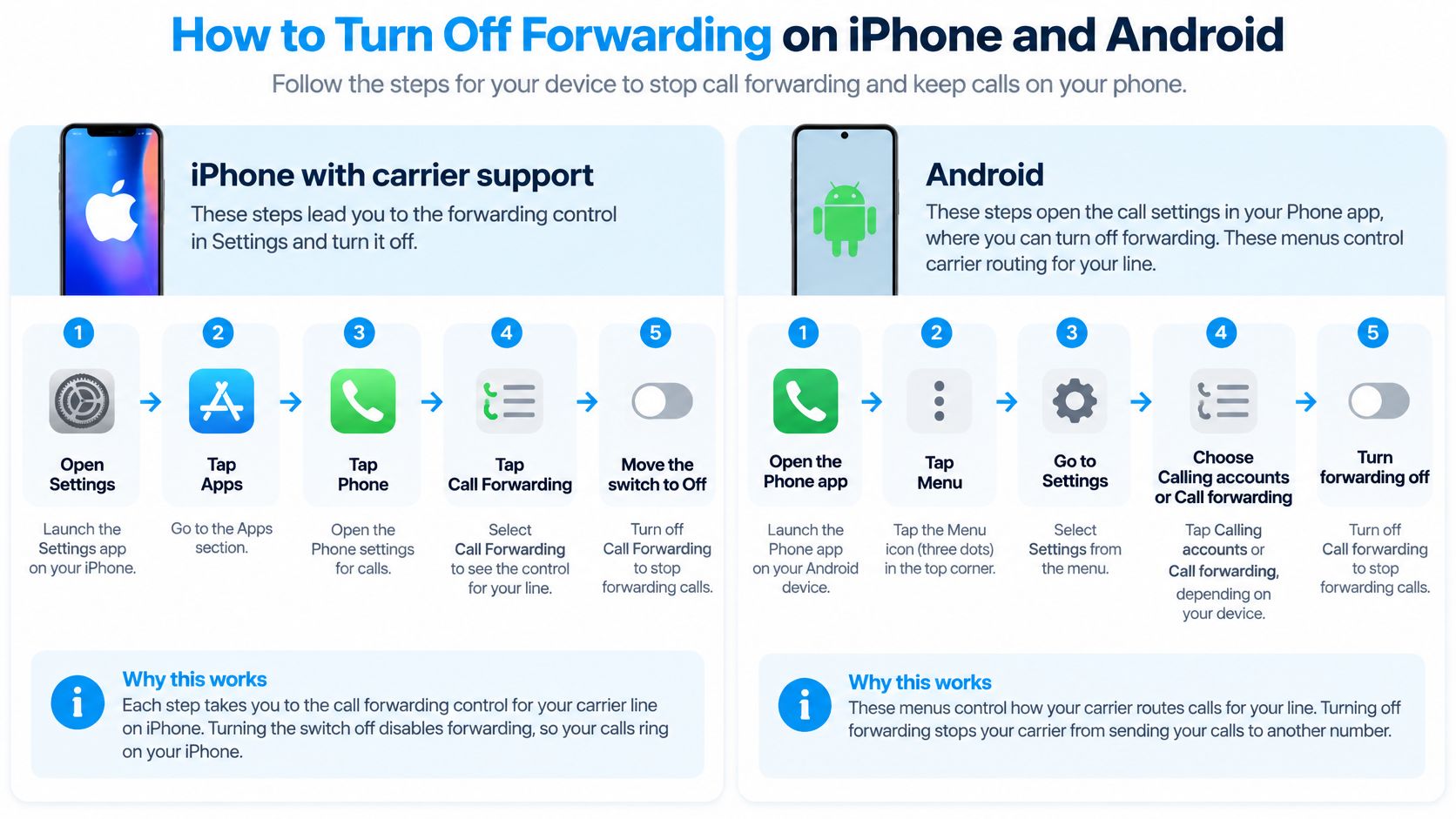
The visual below lays out both routes side by side.
iPhone With Carrier Support
- Open Settings.
- Tap Apps.
- Tap Phone.
- Tap Call Forwarding.
- Move the switch to Off.
That switch is the same one used to turn forwarding on, so this is the reverse action. If the Call Forwarding row isn't there, your carrier hasn't provisioned the feature on that line. Treat the missing row as a carrier issue, not as proof that no forwarding exists, because network-level forwarding can be active without a menu to show it.
Android Using the Samsung Layout
- Open the Phone app.
- Tap the menu or Settings icon.
- Choose Calls.
- Select Call forwarding.
- Open each category in turn, always forward, when busy, when unanswered, and when unreachable.
- Choose Disable or toggle it off.
Samsung's Galaxy guidance follows this same route, telling users to open the phone app, enter call settings, choose the relevant forwarding option, and select Disable. Its value is that it exposes all four categories instead of hiding them behind one command. Resist the urge to skip this by dialing a generic all-cancel code such as ##002#. A blanket cancel can wipe conditional forwarding rules your voicemail depends on, so use the menu or your carrier's own code when you only need to clear specific conditions.
Watch the walkthrough if you'd rather see the taps than read them.
The common slip is switching off only the first category. Say a dental office redirected its main line during a lunch closure. Before reopening, staff need to open every category, not just always forward, because a leftover busy rule would send the second caller of the afternoon to the lunch cover number. You're finished when every category shows off and the phone gives a confirmation on screen or as a tone.
Unforwarding VoIP, PBX and Multi-Location Lines
Business lines fail differently. The forwarding rule rarely lives on the handset in your hand. It sits in a carrier portal, a PBX admin panel, an after-hours schedule, or all three at once.
Treat the job as a rollback, not a single toggle. Apple's guidance on reviewing forwarding settings underlines that iPhone only exposes the option when the carrier supports it, while Android menus may appear under Phone > Settings > Calls, Supplementary services, or Calling accounts depending on the carrier and manufacturer.
Rollback Order
- Build the inventory: List every number, extension, SIM, PBX rule, and after-hours schedule that could redirect a call.
- Start at the top layer: Disable forwarding in the carrier portal or PBX admin panel first, then check each layer below it.
- Clear every category: Turn off each active forwarding type, not just the main rule.
- Keep an audit record: Log the number, timestamp, operator, and resulting status for each change.
Here's the rollback in a real workspace, with portal and handset checked together.
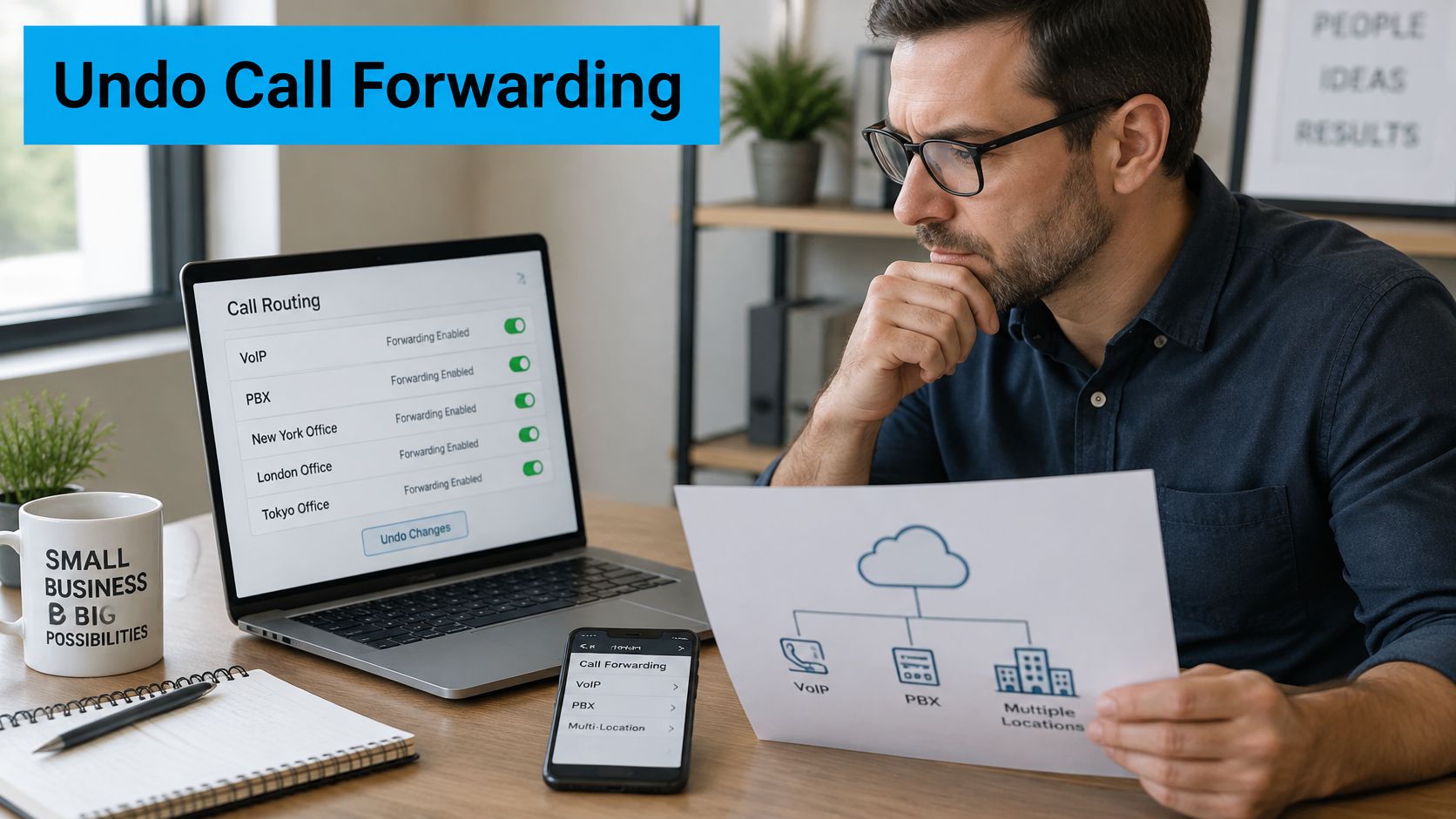
Say a three-location HVAC company sent after-hours calls from its main office to a call center. The inventory step turned up a second rule nobody remembered, one branch extension still forwarding to a technician's personal mobile. Removing only the call center rule would have left that branch leaking calls. If you're reviewing the whole setup rather than patching it, business phone system comparisons can help you judge whether your current platform makes routing rules easy to audit, and our breakdown of what a small business phone system should include covers the admin controls worth checking.
Portal output isn't proof by itself. Check it against what the carrier has on the number, because the two can disagree after a plan change.
Don't declare a business line fixed until four external tests pass, one for each routing state, with no unexpected transfer and voicemail behaving correctly.
That bar matters most on lines carrying appointments, healthcare, or legal calls. An unverified dial code isn't good enough there.
Fixing Calls That Still Reach the Wrong Phone
Most "I already turned it off" cases fall into five buckets. Match your symptom first, then apply the fix in that row.
| Symptom | Likely cause | Fix |
|---|---|---|
| Calls still forward after turning off 'always forward' | A busy, no-answer or unreachable condition is still on | Cancel each remaining condition with its code from the first table, then re-test |
| No forwarding option in the phone menu | Carrier has not provisioned the feature | Contact the carrier to confirm and change the setting |
| Cancel code fails | Phone is outside coverage | Move into service and retry, or call customer service |
| Calls do not ring after forwarding is removed | Do Not Disturb, call blocking, Quiet Mode or a carrier restriction | Check each setting on the phone and ask the carrier about restrictions |
| Forwarding returns after a restart or plan change | Carrier profile or business PBX rule reapplied | Check the carrier account and PBX rules, then repeat the external tests |
The Leftover Conditional Rule
Calls forwarding only sometimes is the giveaway. If your phone rings normally but callers reach the wrong number when you're already talking, the busy rule is still on. Same logic applies to no-answer and unreachable. Go back to the code table and cancel each remaining condition deliberately, then re-test that specific situation.
No Menu and No Signal
Apple's iPhone call forwarding guidance states that setup requires cellular service through a GSM network, that customers on CDMA service must get setup information from their carrier, and that the phone must be within cellular-network range when forwarding is configured. Apple also notes carrier support is required for conditional forwarding, such as when the line is busy or not in service.
That explains a contractor who toggles forwarding in a basement plant room and sees the switch move, yet nothing changes on the network. The phone never reached the carrier. Move into service, repeat the change, and wait for confirmation. For businesses, this is also where messy call routing for a small business creates phantom problems, because a portal rule can override what the handset shows.
If calls don't ring at all once forwarding is gone, forwarding may no longer be your problem. Check Do Not Disturb, call blocking, Quiet Mode, and any carrier-level restriction. And if forwarding reappears after a restart or plan change, assume a carrier profile or PBX rule reapplied it. Re-run your test calls rather than trusting the setting you set last week.
Prove the Change and Confirm Calls Reach You
A cleared menu proves nothing. Only a test call from outside your own network proves the carrier is routing calls where you expect.
Telstra's mobile forwarding instructions document deactivation by dialing ##21#, ##67#, ##61#, and ##62#, then pressing Call/Send, mapped to service codes 21, 67, 61, and 62 for unconditional, busy, unanswered, and unreachable. That's the same four-way split you need to test.
Run Four External Tests
- Normal ringing: Call from another network. Your intended phone should ring and you should be able to answer it.
- Busy line: Start a call on the target phone, then ring it again. The second call should reach voicemail or your chosen destination, not a leftover forwarding number.
- No-answer timeout: Let the phone ring out without answering and confirm it lands where it should.
- Unavailable service: Switch the phone off or use airplane mode, then call it and confirm the result.
Use a number outside your own system. Internal extensions can bypass carrier routing, so an internal test passes while real customers still fail. Record what the caller hears, where the call lands, and the carrier confirmation message for each test. Keeping those results alongside your call detail reporting gives you a paper trail if the problem returns.
Practical rule: If you didn't test the busy condition, you haven't tested forwarding. You've only tested ringing.
Say a plumbing company's owner cleared always forward but never checked the busy state. Every time she was on a call with a supplier, new job inquiries went to an old number. She wasn't missing calls at random. She was losing exactly the calls that arrived while she was busy, which is the pattern an untested conditional rule produces.
Close out with a short checklist. Note the codes or menus you used, save the carrier confirmation, mark all four external tests as passed, and confirm voicemail still picks up correctly. Repeat the full sequence after any carrier change, plan change, or PBX update. If you'd rather not rely on forwarding chains at all, customers can forward existing calls to the dedicated number, or have their current business number ported to Recepta.ai completely free of charge, and since a receptionist is created in 15 minutes, calls can be received immediately after setup.
Don't trust a generic code from an online list. Don't assume a change worked because a switch moved. Dial it, listen for confirmation, then call yourself from outside and watch your own phone ring.
If you're unforwarding calls because a patchwork of mobiles and after-hours rules keeps dropping customers, Recepta.ai gives you one dedicated number where trained human receptionists supported by AI answer within seconds at any hour, follow your playbook, and book appointments instead of sending callers to voicemail. Set it up in minutes, forward your existing number or port it free of charge, and run your four external tests to hear exactly what your callers will hear.