
Outlook Calendar Sync: Setup, Fixes & Tips
The call went to voicemail twice, then the scheduler sent a follow-up that contradicted the first time slot. By the time the customer called back, the appointment was already gone. That's the kind of mess people blame on “Outlook being broken,” when the problem is usually calendar sync behavior that isn't matching the way the team works.
Outlook calendar sync isn't one thing. In one environment, a change shows up right away. In another, the update waits for the next refresh window, and in mobile, the issue might not be sync at all, it might be visibility, permissions, or a calendar toggle that was never turned on. Once you understand those differences, the troubleshooting gets a lot less random.
Why Outlook Calendar Sync Behaves Differently Across Environments
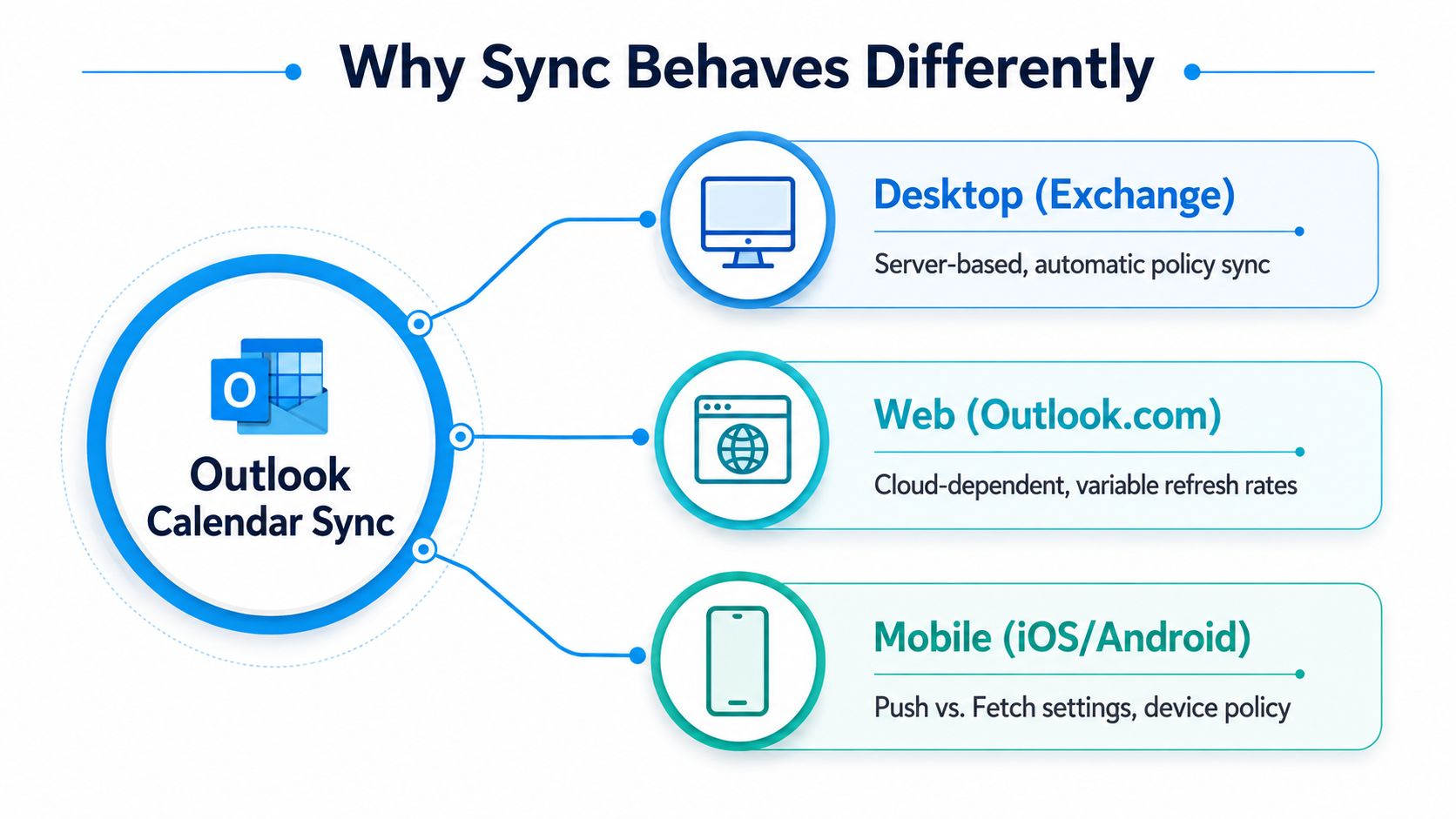
A front-desk manager updates a dentist's afternoon opening on a shared calendar, but the hygienist's phone still shows the old slot. The manager assumes the update failed. In practice, Outlook may be using a different sync path on desktop, web, and mobile, so the same calendar change can behave differently depending on where it's viewed.
The same event can move at different speeds
Microsoft's calendar sharing guidance shows that shared calendars do not all update the same way. Some changes appear right away, while other shared-calendar setups can take longer to surface, especially when the calendar is being accessed through a different client or a delegated setup. Microsoft also notes that older items may not appear in some desktop sync scenarios unless local sync settings are adjusted, which is why admins often verify visibility in Outlook on the web before changing cached settings. Microsoft's calendar sharing documentation
That's why a business can't treat Outlook calendar sync like one uniform system. A clinic using shared schedules, a law firm using delegated calendars, and a service company dispatching field staff may all be on Outlook, but the failure points are not the same. Shared calendars and delegated calendars often break in different ways than a user's primary mailbox calendar, and that difference shows up as timing gaps, missing visibility, or updates that appear on one device but not another.
Practical rule: If a calendar change matters operationally, verify where the source of truth lives before you assume the update should already be visible everywhere.
The older “one system, one refresh rule” mental model causes most confusion. Microsoft 365, Outlook.com, and local client limits each shape sync behavior differently, and the path can also change based on whether the calendar is primary, shared, or delegated. That is why teams see a mix of near-real-time updates and frustrating delays in the same organization.
For network and scheduling teams, the bigger issue is reliability, not just speed. If the underlying mail and calendar path is healthy, users may still experience delay because the calendar is sitting in a refresh model instead of a live replication model. The same principle shows up in other infrastructure layers too, which is why it helps to think about calendar performance the same way you'd think about network consistency, as explained in this reliability-focused overview.
Setting Up Outlook Calendar Sync on Desktop, Web, and Mobile
A lot of setup mistakes start when teams assume every device is pulling calendar data the same way. That is rarely true in practice. On desktop, Exchange behavior is often automatic. On mobile, the sync toggle controls whether events even reach the device. On the web, the fastest check is usually whether the event shows up there first.
Desktop setup starts with the account, not export files
For Microsoft Exchange accounts, Outlook does not need a manual export-import routine because email, contacts, calendar events, and other Exchange folders synchronize automatically. Microsoft also documents that Exchange calendar events are continually synchronized with the server, so a front desk can change an appointment on one PC and expect other Outlook clients to pick it up without copying anything by hand. Microsoft's sync basics page
The desktop verification step is straightforward. Create or edit a test event, then check the same mailbox in Outlook on the web. If the item appears there but not in the desktop client, the issue is usually on the client side, not the mailbox itself. At that point, admins usually look at cache behavior and local sync settings, especially if older items seem to be missing.
A primary mailbox calendar is usually the easiest part of the stack to trust. Shared and delegated calendars are different. They can look healthy in one client and stale in another, which is why the first setup check should always confirm the actual account type and where the calendar lives.
Web is the cleanest place to test the mailbox itself
Outlook on the web is useful because it strips away a lot of local-client noise. If the event is visible there, the calendar item exists on the server and the trouble is more likely tied to the desktop cache, delegate permissions, or device policy. If it is missing there too, the problem is upstream.
That sequence saves time in real environments. A clinic manager, for example, can stop blaming the receptionist's laptop and focus on whether the shared calendar was updated in the mailbox. A web check does not solve everything, but it tells you where not to waste time.
When the web view is correct and the desktop view is wrong, the desktop client is usually the problem. When both are wrong, look at the calendar source and permissions first.
Mobile setup depends on the app setting
Microsoft's Outlook mobile guidance says to go to Settings > Calendar and turn on Sync calendars. Microsoft also notes that two-way sync applies only to Microsoft 365, Outlook.com, and hybrid modern-authentication on-premises mailboxes. On Android, those Outlook calendars can appear in the device's default calendar app, and if sync is later turned off, the Outlook events are removed from that default calendar view. Microsoft's mobile sync guidance
That makes mobile setup a workflow choice, not just a technical one. A field technician may need Outlook appointments visible in the native phone calendar, while an office manager may want everything kept inside the Outlook app only. The same setting can support both, but only if the team understands what that toggle does.
Google Workspace behaves differently, which is why teams that also support Gmail users should compare expectations against a separate reference point such as Google Calendar integration details before assuming Outlook mobile will mirror every other calendar app. In mixed environments, that comparison helps separate Outlook behavior from the way the underlying mailbox is published.
Understanding the Three Sync Speed Tiers and Their Business Impact
A scheduling team does not care about technical elegance. It cares whether a booking lands before the next call, the next shift handoff, or the next customer arrives. That is why the key question is not whether Outlook syncs, it is which sync model the calendar is using and how much delay the business can tolerate before that delay turns into a conflict.
Instant, periodic, and delayed sync are not interchangeable
Outlook calendar behavior varies by environment, and shared calendars are where the differences show up fastest. Some shared calendars update almost as soon as the change is made. Others move on a timed cycle, and some lag long enough that the calendar looks current when it is not. Google Workspace also uses a timed sync model in some Outlook environments, which is why teams that mix mail systems need to understand the gap between a change being made and that change showing up in Outlook. Microsoft calendar sharing, Google Workspace Outlook sync
| Sync Tier | Interval | Typical Use Case | Double-Booking Risk |
|---|---|---|---|
| Instant | Near-real-time | Same-tenant Microsoft 365 shared calendars | Lower, but still depends on permissions and device visibility |
| Periodic | About every 10 minutes | Google Workspace Outlook sync environments | Moderate, especially in fast-moving schedules |
| Delayed | Within three hours in most cases | Some shared-calendar scenarios outside same-tenant instant sync | Higher, because updates can lag long enough to mislead staff |
Those tiers matter because they do not fail in the same way. A primary calendar on a user's own mailbox usually reflects changes faster and with fewer permission variables. A shared calendar can lag even when the mailbox itself is fine. A delegated calendar can fail for reasons that never affect a personal calendar, such as access rights, folder behavior, or whether the client is showing the source calendar or a cached copy. That is why generic advice like “restart Outlook” misses the operational problem.
The business risk is operational, not abstract
A dental clinic with a cancellation list cannot assume every update is visible in every calendar view. A law firm cannot treat a delegated calendar like a primary mailbox and expect the same behavior. A home-service dispatcher who books back-to-back jobs needs to know whether the office calendar is current or only current enough to look right.
The practical issue is trust. Once staff notice that one calendar view updates fast while another lags, they stop relying on the calendar as a shared source of truth and start confirming appointments by chat or phone. That adds manual work, but it also creates new failure points because each person starts working from a slightly different version of the schedule.
A better workflow matches the sync tier to the job. Instant sync can support high-turnover schedules with tighter coordination. Periodic sync needs a confirmation habit before a slot is reused. Delayed sync needs conservative booking rules, especially when several people can edit the same schedule. For teams that want a cleaner mental model of propagation delay, this discussion of real-time data sync is a useful reference point.
The hidden cost is not just a missed slot. It is the time spent reconciling who saw what, when they saw it, and which calendar was authoritative at the moment a decision was made. Once that starts happening every day, the calendar stops behaving like an operations tool and starts acting like another thing staff have to verify by hand.
Troubleshooting Shared and Delegated Calendar Failures
Shared calendars break differently from primary calendars, and that's where most generic advice falls flat. When email works but the calendar doesn't, the failure is often tied to permissions, shared-folder behavior, or server-side synchronization, not a broken Outlook installation.
Start by checking the calendar relationship, not the app version
Microsoft's own support path separates shared calendar behavior into a distinct known-issues track, and Microsoft Q&A often points users toward synchronization, permissions, and shared-folder settings when only calendars fail while email still works. That pattern matters because a delegated calendar is not the same thing as a primary mailbox calendar, even if both appear in Outlook. Microsoft Q&A on calendar sync issues
The first diagnostic question is simple. Is this user viewing their own calendar, or someone else's shared calendar? If it's shared, then the access level matters. A Viewer can't do what an Editor can, and a delegated setup can behave differently from a directly shared folder. If the calendar type and the access method don't match, the problem can look like sync failure when it's really an authorization mismatch.
Use a server-side verification sequence
Microsoft recommends a concrete check for phone and tablet sync failures. Set up the email on the PC Outlook client using the Exchange protocol, create a test event, restart Outlook and the PC, then confirm the event appears on the mobile device. If the event shows on desktop but not on mobile, you've narrowed the fault to device sync, account setup, or a stale app state. Microsoft's phone and tablet troubleshooting guide
That sequence is useful because it avoids guessing. In practice, a law firm partner with a missing mobile calendar entry can be tested with one controlled appointment instead of ten random changes. If the test event follows the expected path, the calendar itself is healthy. If it doesn't, the issue is easier to isolate.
Shared folders and cached behavior need different checks
Outlook desktop and Outlook mobile don't always surface shared calendars the same way. If the shared folder is present on one client but not another, the problem may be view state, cached shared-folder settings, or permission drift. Microsoft's support materials keep pointing back to the calendar relationship itself because that's often where the failure starts.
A shared calendar issue is usually a coordination problem between permissions, client view, and mailbox state, not a single bad device.
For IT teams, that means moving away from generic cache-clearing rituals as the first step. Those fixes can help, but they shouldn't be the only play. Start with the calendar type, confirm the access method, test on Outlook for the web, and then isolate the device. That order saves time and reduces false conclusions.
The most common mistake is assuming a shared calendar should behave like the owner's primary calendar. It won't, not always. Delegated access, cached shared folders, and mobile view settings all create different failure modes, so the diagnosis has to match the calendar relationship.
Fixing Mobile Calendar Visibility Issues That Masquerade as Sync Failures
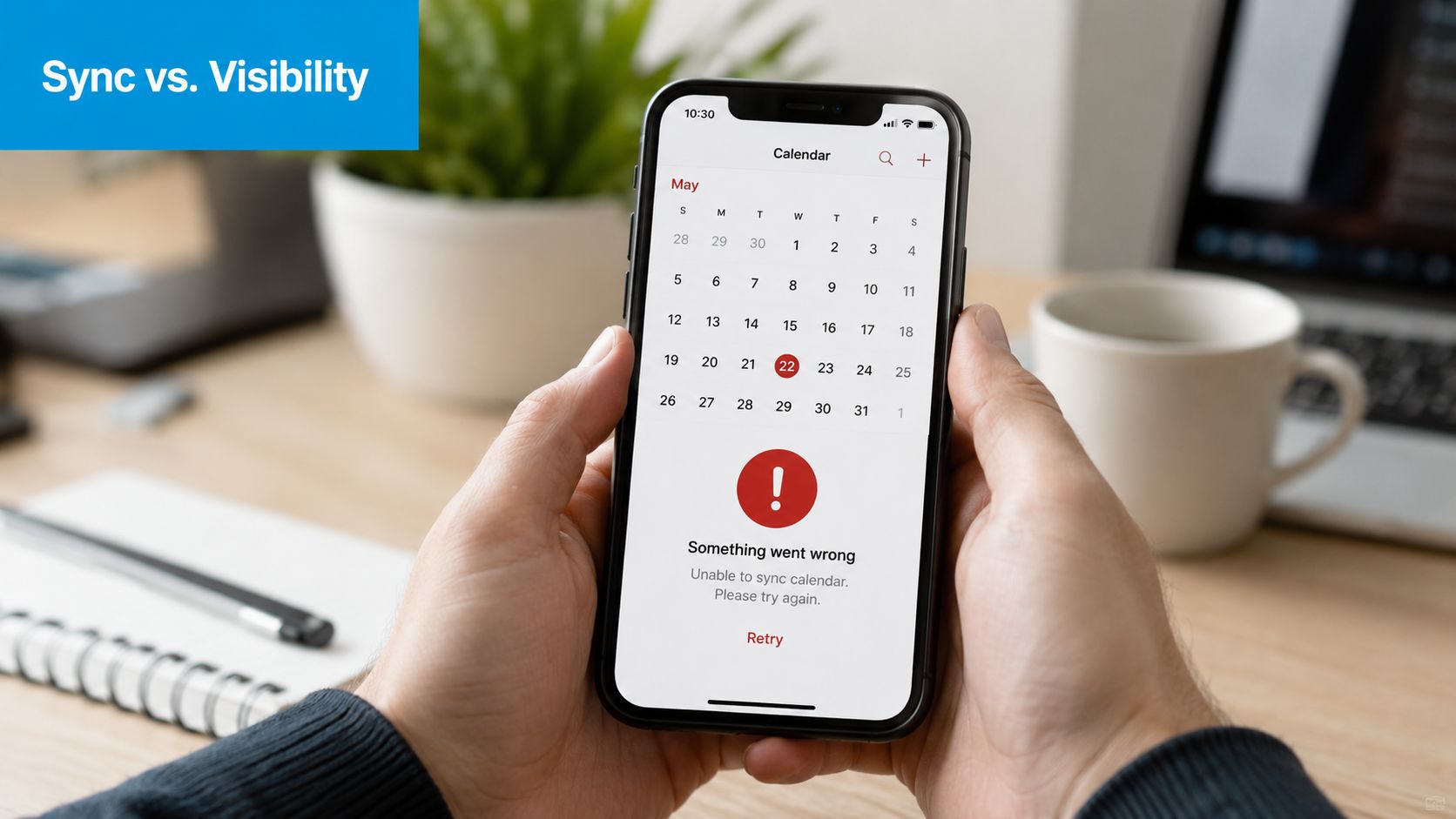
A calendar can be syncing perfectly and still look empty on a phone. That's the trap. Many “Outlook calendar not syncing” complaints are really visibility problems, account-toggle problems, or default-calendar settings that hide the events instead of losing them.
Check the calendar list before you touch the account
Microsoft says that in Outlook for Android, the account's calendar has to be enabled in the Calendar view for those events to appear, and if the calendar isn't visible you should check the left-side calendar list and make sure the relevant account calendar is checked. Microsoft also notes that toggling that calendar view is a key diagnostic step because the events may already exist and not be displayed. Microsoft's Android calendar visibility guidance
That's the fastest thing to verify when a property-management coordinator says a vendor meeting “disappeared.” If the checkbox is off, nothing is broken. The event is just hidden from that view. This is the kind of issue that gets escalated too early because it looks like sync failure from the user's perspective.
Mobile sync settings can shift the source of the problem
Microsoft Q&A and support guidance increasingly treat these situations as cross-app mobile settings issues, covering Outlook, iOS Calendar, and Android account sync instead of treating every complaint as an Outlook defect. That shift matches what happens in the field. A user may have the right account, but push or fetch behavior is off, the app's calendar toggle is disabled, or the device calendar is filtering the account out of view. Microsoft Q&A on calendar synchronization issues
The practical fix is to walk the device backward from visibility to account state. Check whether the calendar is displayed. Check whether the account is enabled. Check whether the device calendar app is reading the right source. Only then decide whether to re-add the account or reset the app.
Use device-level checks before escalating to IT
A quick test can save everyone time. If the same event appears in Outlook on the web but not on the phone, the server is fine. If the event appears after the calendar is checked in the view list, the issue was visibility, not synchronization. If the event still doesn't show after the account is confirmed and the app is refreshed, then account re-addition becomes a reasonable next step.
On mobile, “sync” and “display” get conflated constantly. That's why a phone can make a healthy mailbox look broken. The user sees a missing appointment, but the actual failure is often one step earlier in the chain, at the device settings level.
The cleanest habit is to verify the calendar checkbox and the account's mobile sync setting before anyone starts reinstalling Outlook. That tiny step prevents a lot of unnecessary work, especially in teams that rotate phones or manage multiple calendars on the same device.
Connecting Calendar Sync to Business Workflows and Third-Party Integrations
Calendar reliability stops being an IT detail the moment booking becomes revenue. If an appointment, callback, or follow-up doesn't land where staff expect it, the business loses time, confidence, or both. That's why calendar sync has to be treated as part of the workflow, not just a background app feature.
Sync quality affects the whole appointment chain
A scheduling workflow usually starts in one system and ends in another. A lead comes in, a slot gets offered, the event lands in a calendar, and someone else depends on that calendar to act on it. If the sync is delayed or the wrong calendar is connected, the downstream steps can fall apart even though the original booking screen looked fine.
Third-party integrations matter. Recepta.ai's calendar integration content shows how calendar connections sit inside broader scheduling and follow-up workflows, not just inside Outlook itself. Its calendar integration overview is a useful reminder that calendars often serve as the trigger point for other tools, not just the record of an appointment.
Build around verification, permissions, and workflow fit
The businesses that avoid calendar pain usually do three things well. They test sync speed before turning on automated scheduling. They give people the right permission level for the calendar they use. They monitor sync health as part of routine maintenance, the same way they would check phone routing or mailbox rules.
That matters most for clinics, law firms, home-service companies, and franchise teams. These organizations often depend on shared schedules, delegated access, and mobile visibility all at once. If any one of those layers is off, the whole workflow slows down.
Don't let sync delay become a customer experience problem
A good calendar integration should reduce manual handoffs, not create them. If the system is designed with realistic sync windows in mind, staff know when to trust the calendar and when to verify against the source schedule. That leads to fewer missed calls, fewer duplicated bookings, and less back-and-forth between office staff and field teams.
The biggest mistake is treating calendar sync as a one-time setup task. It isn't. It's an ongoing part of operational reliability, especially when the calendar feeds CRM records, customer follow-up, and automated appointment workflows.
If your team depends on Outlook calendar sync for scheduling, dispatch, or client follow-up, tighten the workflow before the next missed booking exposes a weak link. Recepta.ai helps businesses connect calls, scheduling, and follow-up with calendar-driven automation and live support, so calendar delays don't turn into lost opportunities. Visit Recepta.ai to see how it fits into your scheduling stack.