
Software Compatibility: A Practical Guide for 2026

Your scheduling tool says the job is booked, your phone system says the call never came through, and your team is busy blaming the wrong vendor while the lead slips away. That's the kind of mess that turns software compatibility from a technical checkbox into a revenue problem, especially for small businesses that depend on a handful of connected tools to keep the day moving.
The hard truth is that most owners don't notice compatibility until something breaks. By then, staff are already doing manual workarounds, customers are waiting, and the cost has started showing up in support calls, missed appointments, and broken workflows. IBM's System/360 in 1964 was a major shift because it treated compatibility as a platform strategy, not an afterthought, and that lesson still applies when today's tools need to cooperate across apps, devices, browsers, and updates historical compatibility context.
Why Software Compatibility Decisions Make or Break Your Operations
A home service business feels the pain first. The dispatcher updates a calendar, the CRM logs the lead, and the phone system should trigger a callback. Then a routine update lands, the sync breaks, and peak-season calls start going to voicemail while the office assumes the workflow is still running.
That's not a software “glitch.” It's a business interruption.
Software compatibility means different systems, tools, and platforms can work together without data loss, manual cleanup, or hidden errors. In practice, that includes the operating system on your office PCs, the browser your team uses, the API that moves data between tools, and the file formats that your billing or case-management system exports. Standards work treats compatibility as a non-functional requirement that covers whether software can operate with other software, hardware, and environments, and it's often measured by platform support and version boundaries compatibility constraint overview.
Practical rule: if a workflow depends on two systems staying aligned, then the integration is only as reliable as the least disciplined vendor in the chain.
The problem is scale. Businesses need multiple tools to operate, but every connection point adds another place where things can drift. IBM's System/360 showed that compatibility could be a commercial advantage. Modern Java library research says the same idea still matters, with a study of 317 real-world Java libraries, 9,000 releases, and 260,000 client applications finding that 27.99% of API changes were breaking changes, the median library had 14.78% breaking changes overall, and only 2.54% of clients were potentially impacted by a given breaking change compatibility study summary. The lesson is simple, breakage can be statistically concentrated, but for the business that gets hit, it's still very real.
The rest of this article is about avoiding surprise outages. You'll get a plain-English breakdown of compatibility types, the failure patterns that show up in live environments, a practical testing process, and a vendor checklist that helps you separate serious partners from polished marketing.
The Six Types of Software Compatibility Every Business Should Understand
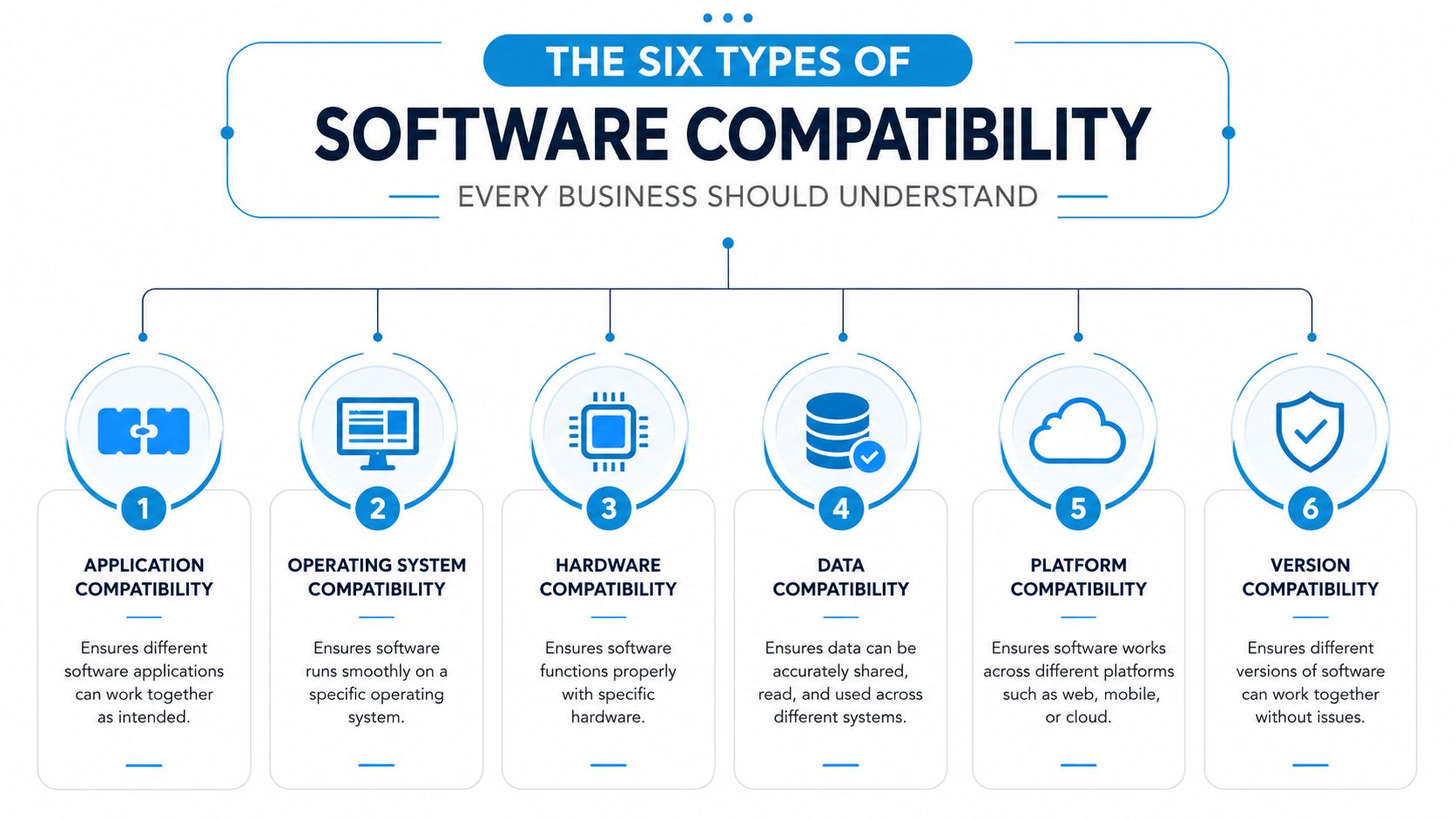
Operating system and browser compatibility
This is the first filter, and it's the one people skip too often. If your accounting app only works properly on certain Windows builds, or your team's web portal needs current versions of Chrome, Safari, or Edge, then the tool isn't really compatible until your environment matches those requirements.
For a dental office, that can mean the practice management system works on the front-desk PCs but not on a traveling hygienist's laptop. For a plumbing company, it might mean the scheduling tool behaves fine on desktops but gets clumsy in a mobile browser when crews are in the field. The platform may launch, but launch isn't the same as reliable operation.
API compatibility
APIs are how systems talk to each other. If two people speak the same language but one suddenly changes the vocabulary, the conversation still sounds familiar, but the meaning slips.
That's what happens when your CRM, scheduling system, and billing software depend on an integration and one side updates its API version. The connection might keep running, but fields stop mapping correctly, automation fails without warning, or records stop syncing in the background. I've seen small firms assume “connected” means safe, then discover later that the data they trusted was incomplete.
Data format compatibility
This one sounds dull until it wrecks a migration. Your old spreadsheet exports in one format, your new platform expects another, and now staff are retyping client data by hand. That's not an integration, that's a costly copy-paste habit.
A law firm moving matter records, a clinic importing patient history, or a franchise pushing location-level reports all depend on clean transfer between systems. If line breaks, date formats, field lengths, or custom values don't survive the move, the receiving tool may accept the file while still mangling the information.
Backward and forward compatibility
Backward compatibility means newer software still works with older setups. Forward compatibility means today's systems can adapt to tomorrow's standards or expectations.
The enterprise platform example in the verified data is blunt. Some platforms require 64-bit client operating systems, 64-bit server operating systems, and a 64-bit database server platform constraint example. That kind of hard boundary reduces binary mismatch risk, but it also means you've got less room for mixed-architecture leftovers. In a mixed-vendor stack, these limits matter fast.
Compatibility fails when teams treat every upgrade as isolated. It's never isolated.
Real-world matrices and support boundaries
Vendors often publish compatibility matrices that spell out exact OS, browser, database, and version combinations. Broadcom's VMware compatibility guide, for example, lists supported and deprecated combinations across operating systems and virtualization releases, which shows how explicit those boundaries can get in practice compatibility guide examples. That's not bureaucracy. It's the vendor telling you where support stops.
If you run a healthcare office, a professional services firm, or a service business, read those boundaries before buying. A tool that works in your demo may still be a bad fit if it can't live inside your actual environment.
Common Causes of Software Incompatibility and How to Spot Them Early

You usually do not get a loud warning when compatibility starts to slip. You get friction. A field fails to populate. A mobile user has to refresh twice. A staff member says, “I already fixed that manually,” and nobody opens a ticket because the workflow still appears to work.
The failure modes that gradually build up
Operating system updates can change runtime behavior, so a tool that ran fine last week may behave differently after patch day. Hardware and driver mismatches show up after a new printer, scanner, headset, or workstation lands in the office. Security software can block legitimate integrations, especially when it sees API traffic, file exchange, or remote connections that it does not recognize as safe.
Version mismatches are another constant. One tool is on the current release, the other is still on an older build, and the handshake between them gets shaky. Legacy dependencies make this worse because older workflows, older data formats, or older plugins can keep a business tied to software vendors are moving away from.
A useful warning sign is manual data entry increasing without a deliberate process change. Another is sync delays that staff dismiss because “it catches up later.” Error messages that people have learned to ignore are even worse, because they often point to a deeper compatibility problem that is already affecting data quality.
Why breaks often look like partial success
The most dangerous incompatibility is the one that seems to work. A schedule may sync, but only some fields arrive. A billing export may complete, but the tax code does not map. An appointment workflow may trigger, but the notification never reaches the right person.
That is why the industrial guidance in the brief matters. It calls out OS issues, hardware incompatibility, legacy dependencies, interoperability problems, version mismatch, security conflicts, and updates or patches as distinct failure points, and it recommends test environments, vendor coordination, and virtualization as mitigations compatibility failure guidance. For SMBs, the takeaway is straightforward. If a workflow depends on several moving parts, assume it can degrade before it fully fails.
A simple way to think about the risk
If your team has started building workarounds around a tool, you are already paying a compatibility tax. The cost shows up as support time, rework, or lost trust in the data. The 1996 estimate cited in the verified data, 200 million technical-support calls at about $23 per call, points to how expensive unresolved user problems can get at scale, and the same source notes that 36% of problems were multi-vendor while 75% of help-desk costs came from multi-vendor issues software quality and support cost data. That is exactly why integration problems deserve executive attention, not just IT attention.
If you already suspect a sync problem, map the path from one system to the next and look for the first place data changes shape. The simplest clue is often the best one. When users stop trusting an automated handoff, compatibility is already costing you.
See how API connections behave under real operational pressure in this practical guide to API connectivity.
A Practical Testing Process for Evaluating Software Compatibility
Most buyers test the happy path. They log in, connect once, and assume the rest of the workflow will hold. That's not enough, because compatibility problems usually appear when daily work gets messy, not when a sales rep is watching.
Start with the requirements on both sides
Put the vendor's requirements next to your actual environment. Check the supported operating systems, browser versions, database requirements, and API version specifications before you buy. If either side has hard boundaries, treat them as deployment blockers, not suggestions.
A compatibility matrix is the right tool here. It doesn't need to be fancy. A spreadsheet with the tool, version, device, browser, environment, result, and notes is enough to reveal where things work, where they degrade, and where they fail.
Test real work, not just login access
A scheduling platform that opens in a free trial isn't proven. Test a real calendar import, a same-day reschedule, a mobile booking, and a notification to the office phone line. If you run a clinic, test a patient record update plus a follow-up reminder. If you run a law firm, test a contact import, a matter update, and a document handoff.
Practical rule: if the workflow happens on a normal Tuesday, that's the workflow you should test first.
Use sandbox accounts or free trials to recreate the chain of events your staff performs. Then break it on purpose. Try a large data import, multiple users at the same time, and mobile device usage. Those are the moments when weak compatibility shows up.
Read vendor matrices like a buyer, not a tourist
Vendor matrices are often dense, but the signal is there. Look for exact operating systems, browser support, database versions, and whether the vendor marks anything as deprecated or legacy. If a matrix says your environment is supported only on a specific architecture or release train, that's a deployment constraint, not a footnote.
The question is whether the tool fits your operating reality. The right tool for one firm can be a bad fit for another because the environment, update cadence, or device mix is different. If you want a clean example of how sync can be part of the workflow rather than an afterthought, the internal guide on real-time data sync is worth reviewing before you commit to any integration-heavy purchase.
| Compatibility Testing Checklist | What to Verify | Red Flags |
|---|---|---|
| Operating system | Supported versions on every office device | “Should work” with no published version list |
| Browser support | Current browsers your staff actually use | Works only in one browser or one release |
| API versions | Current and legacy version behavior | No versioning policy or deprecation notice |
| Data imports | Field mapping, dates, attachments, custom fields | Missing records, renamed fields, broken formatting |
| Mobile use | Booking, editing, and notification behavior on phones | Features that disappear outside desktop mode |
| Multi-user access | Simultaneous edits and sync timing | Conflicts, slow updates, duplicate records |
If the vendor won't test with you, that's the answer.
Vendor Evaluation Checklist for Reliable Integrations
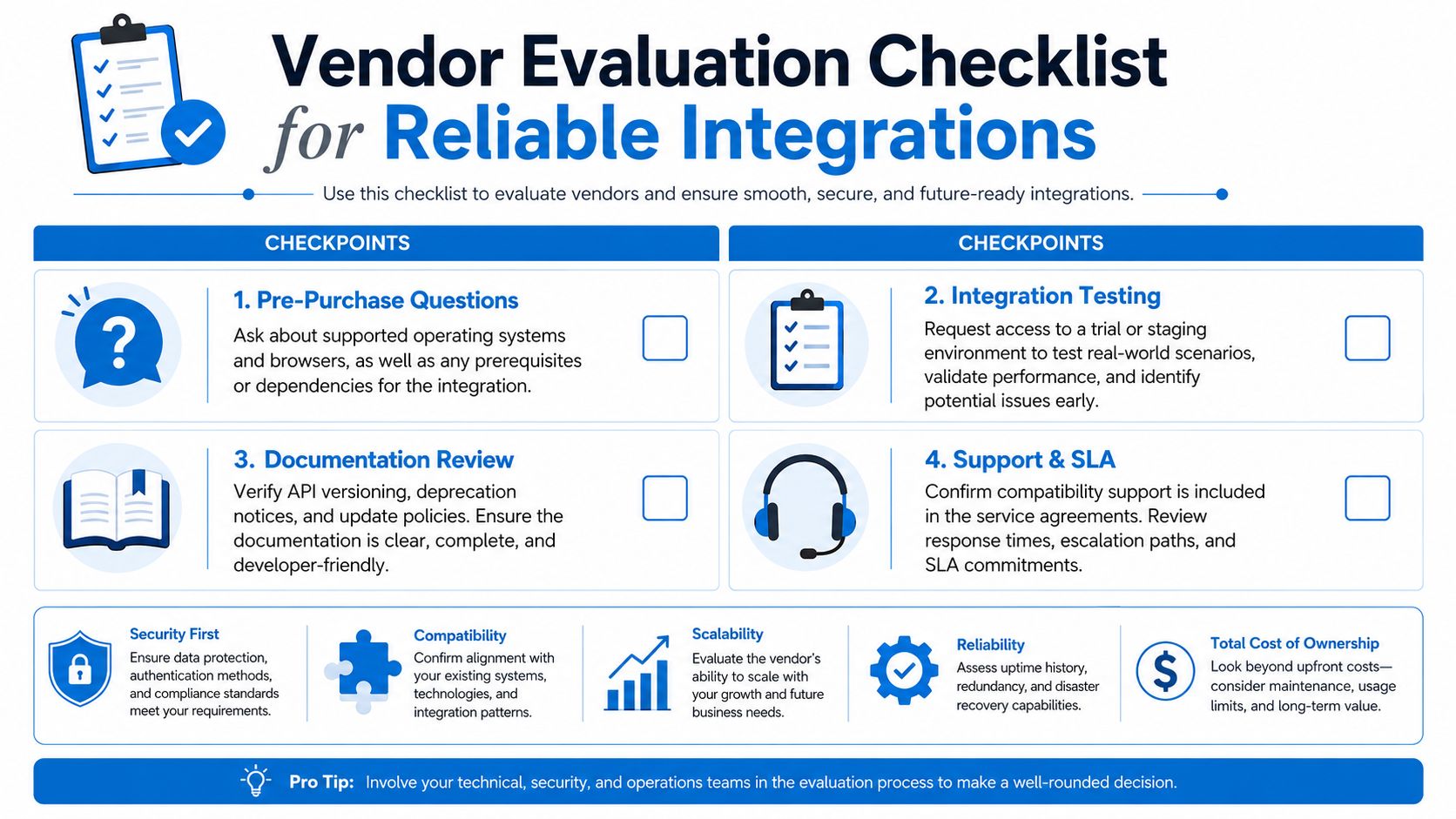
A vendor can look polished in a demo and still create expensive compatibility problems later. I care less about the logo parade and more about how the vendor handles version changes, browser support shifts, and partner API updates without turning your workflow into a support ticket queue.
Questions that separate real partners from polished risk
Ask for a published compatibility matrix, a clear policy for breaking API changes, and advance notice before updates that could affect daily operations. Ask whether they provide sandbox environments, how they document version changes, and whether support will trace integration drift or push you back to another vendor.
That matters most for tools sitting between multiple systems. A platform that connects your CRM, calendars, and industry software needs disciplined version control, clear testing, and a support team that understands how one bad update can spread through an office.
The Headset Army help desk comparison is a useful reminder that support quality matters as much as feature lists when you are choosing operational software. A vendor with weak support turns small compatibility issues into downtime, duplicate records, and manual cleanup that nobody planned to own.
What strong integration ecosystems look like
Good platforms do more than claim broad compatibility. They show documented sync behavior, update guidance, and clear failure handling. Recepta.ai says it integrates with 2,500+ tools while keeping records consistent through real-time sync, which only matters if the vendor can carry that behavior through updates and edge cases.
Buyers get misled when a platform connects to everything in theory but falls apart after an upstream change. The core test is whether the vendor preserves state, logs failures clearly, and recovers without staff rebuilding records by hand.
If you are comparing systems that depend on third-party connections, the guide to third-party integrations helps separate native support from fragile plumbing. That distinction matters before you sign, not after a sync breaks.
Buyer's filter: if the vendor cannot explain their update policy in plain English, they are asking you to carry their risk.
Use this checklist before you sign:
- Compatibility matrix: Does the vendor publish exact supported versions and architectures?
- Update policy: Do they warn you before changes that can break integrations?
- Sandbox access: Can you test real workflows without risking production data?
- Support clarity: Will support help trace sync failures across systems?
- Failure visibility: Do they show logs, error states, and retry behavior?
- Integration depth: Are they maintaining the connection, or just listing the logo of another app?
Mitigation Strategies That Prevent Compatibility Failures
The cheapest time to handle compatibility is before an update lands. The next best time is right after you catch a problem in a controlled environment and can stop it from spreading. The expensive time is when a customer reports a broken workflow in production and your team has to sort out which change caused it.
Build guardrails that small teams can run
Small teams need clear ownership, not more tools. Assign one person to approve updates, one person to check the business impact, and one person to decide whether the change goes live. That simple chain keeps compatibility decisions from getting lost between support, operations, and whoever happened to install the last patch.
Use a controlled test environment for verification, then make release rules part of normal operations. Track which systems depend on each integration, define who signs off on changes, and document what has to happen before an update reaches live data. If you skip that paperwork, the same people will keep rediscovering the same failure after every vendor change.
Rollback planning belongs in the operating rules, not in a panic meeting. If an update breaks scheduling sync or blocks a billing export, your team needs to know what gets reversed, who owns the rollback, and how fast the reversal has to happen. Continuous compatibility monitoring also belongs here, because it gives you early warning when a vendor change, API shift, or version mismatch starts to drift out of policy.
Match the strategy to the business model
The right guardrails depend on what the business depends on. A healthcare practice cannot afford patient data sync failures, so it needs tighter control over approvals, vendor communication, and change timing. A home service business lives on scheduling and call handling across several tools, so even a short disruption can cost a booked job. Franchise operators need consistency across locations, which means one store's workaround can turn into everyone's mess if nobody controls it.
Automated regression checks help small teams because they catch repeat failures after routine changes without asking staff to retest everything by hand. Keep the checks focused on the workflows that pay the bills, such as record updates, handoffs between systems, and confirmation messages that customers rely on.
Vendor coordination matters too, especially when one integration sits on top of another. Someone has to own the chain, confirm which side is responsible for a break, and keep support conversations tied to the same workflow instead of letting each vendor point elsewhere. That is where what CRM integration means becomes practical, because the value of the connection lives in the handoff, not the logo on the app directory.
Know when to preserve old compatibility and when to move on
Backward compatibility helps when the business still relies on older systems, mixed-vendor environments, or record workflows that cannot tolerate surprise changes. It reduces disruption, but it also keeps old assumptions alive. Every legacy connection you preserve adds testing overhead, support effort, and another place where a small change can create a hidden failure.
Treat compatibility as a managed decision. Some systems should stay stable because the cost of change is too high. Others should move because carrying old behavior forward only protects outdated workflows. The compatibility literature in the brief makes the same point about weak and strong compatibility, teams can think they're exchanging data while still failing at the layout or consumption level compatibility and backward support guidance.
The practical rule is straightforward. Keep older compatibility where it protects revenue, service quality, or compliance. Cut it where it only preserves dead weight. If you let every vendor decide your upgrade path, you inherit their schedule, their assumptions, and their mistakes. Decide where stability matters most, document the cutoff, and make sure the business understands the trade-off before the next update forces the issue.
Building a Compatibility First Technology Strategy
Compatibility is not a one-time setup task. It's an operating discipline. If you treat it that way, you'll catch the slow failures before they become support tickets, customer complaints, or surprise downtime.
The priorities are straightforward. Understand the main compatibility types, spot the common failure causes, test before you commit, evaluate vendors with hard questions, and maintain compatibility through updates instead of reacting after a break. IBM's System/360 showed that compatibility can be a strategic advantage, and modern software environments prove the same thing every day.
Your next moves should be practical. Audit your current integrations for hidden compatibility risks, create a simple test protocol for every new tool, and build a vendor scorecard that forces clear answers on support, versioning, and update policy. If you serve healthcare, legal, finance, home services, or franchise locations, this work protects revenue as much as it protects data.
For a deeper look at how integration strategy fits into day-to-day operations, the overview of what CRM integration means is a smart next read.
Recepta.ai helps businesses reduce missed interactions, keep records consistent, and connect customer communication to the tools they already use. If you want a platform built around reliable integrations and real-world workflow continuity, visit Recepta.ai and see how it fits into your own compatibility plan.
.webp)